Skip to content
SetupLabIllustrated guide
2.0.2GitHub

Discovering SetupLab

5 topics

What the app does, how to install it, keep it up to date and pick its language.

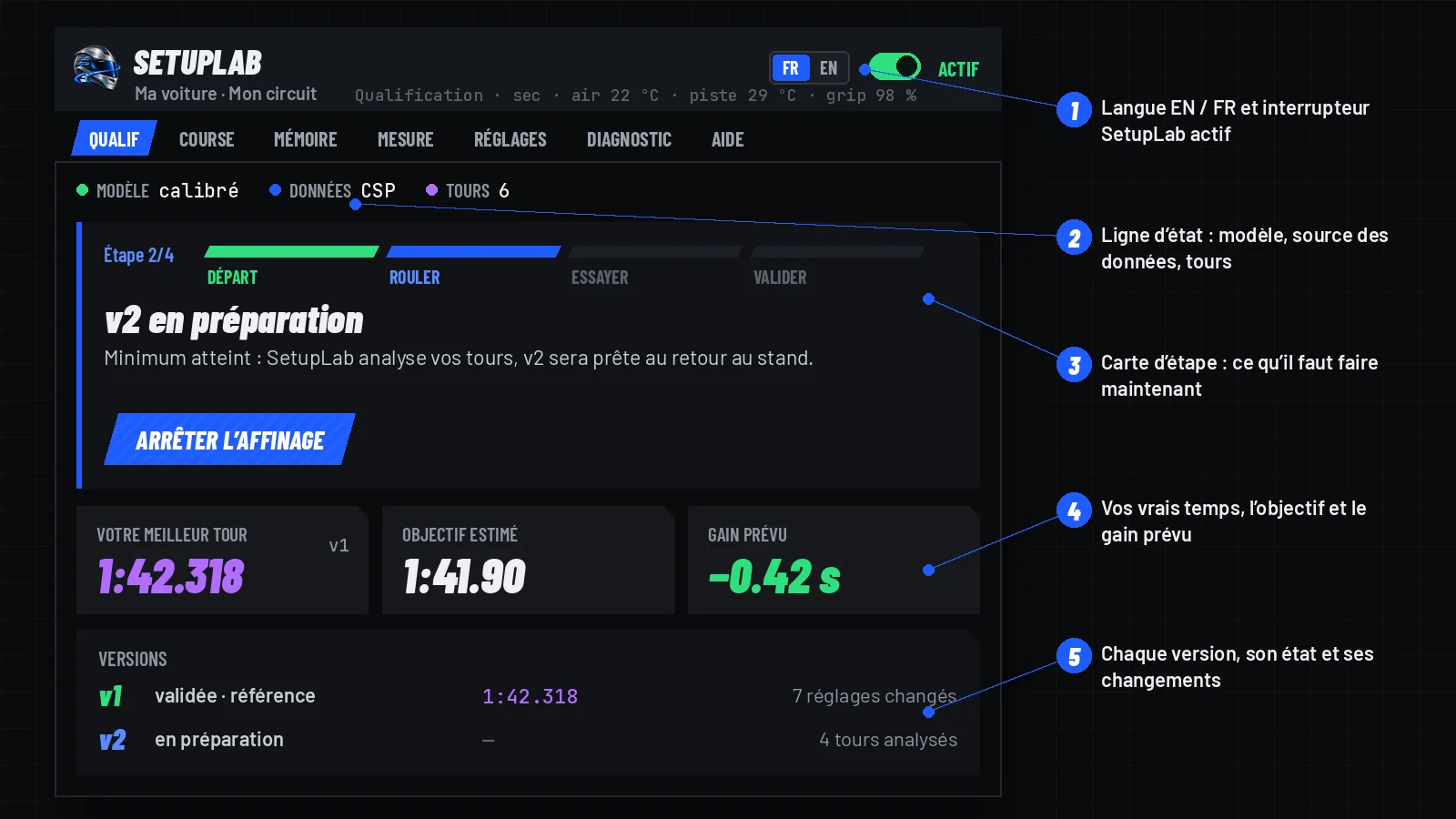
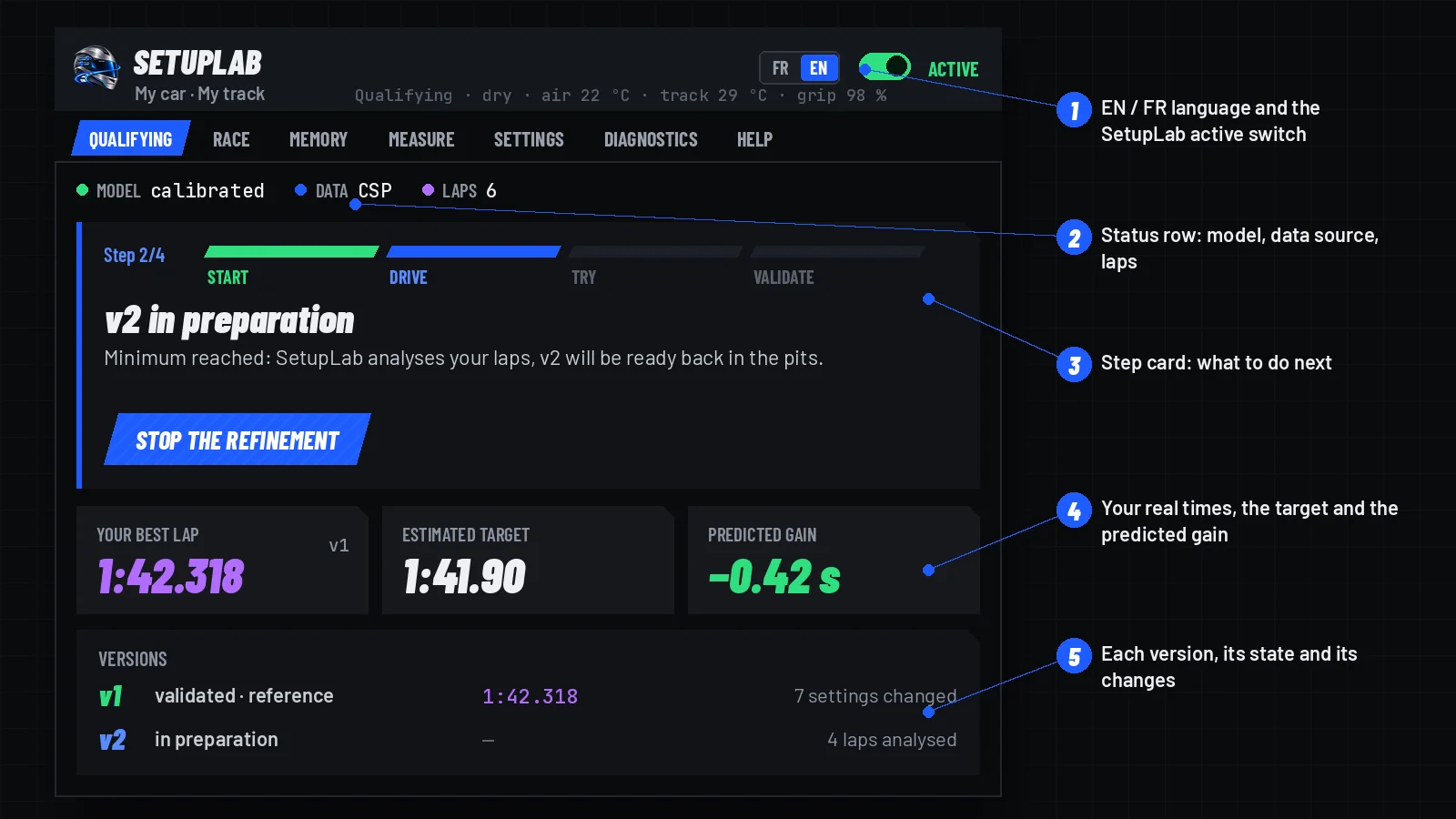
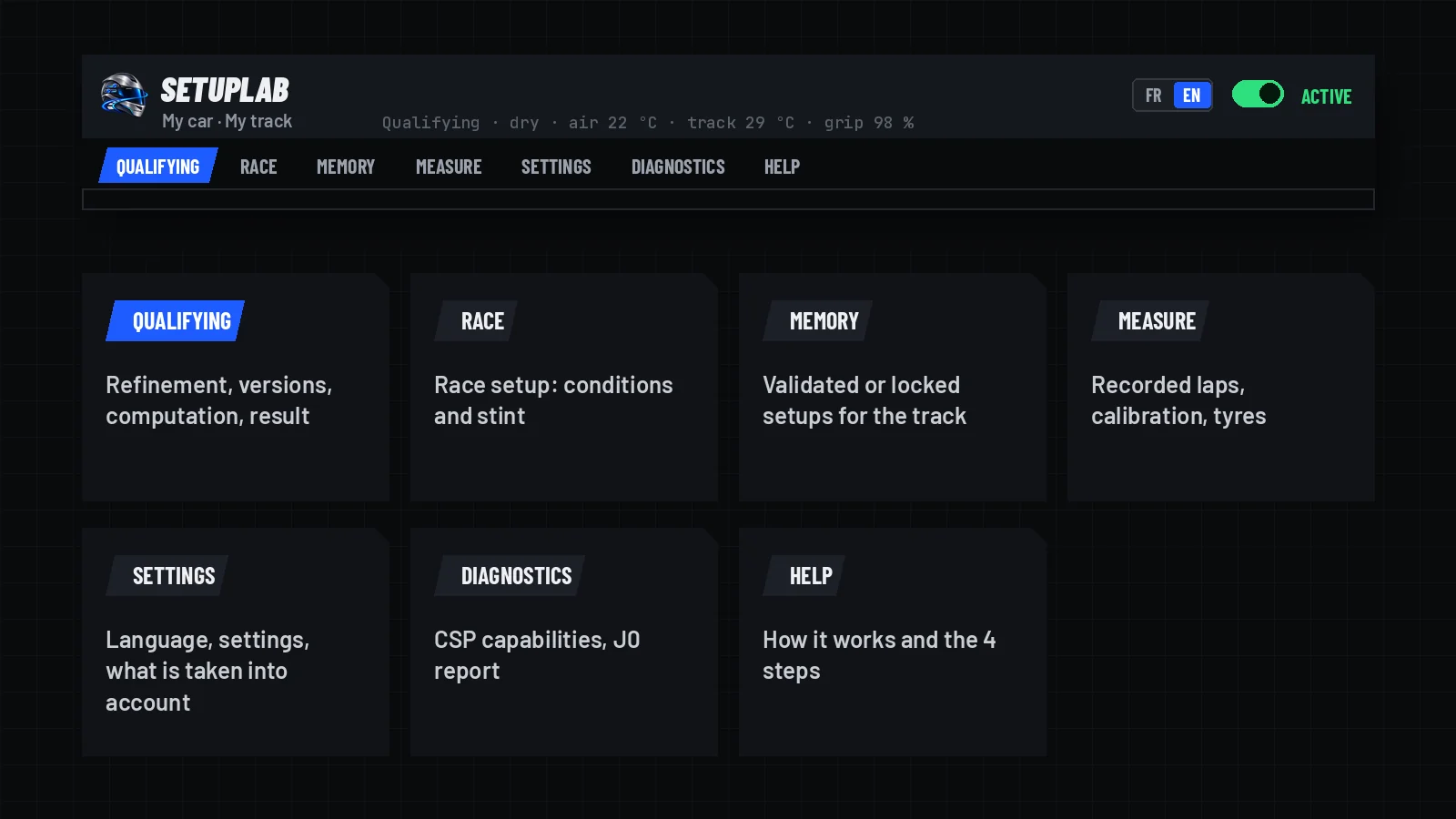
The SetupLab window: header, tabs, status row, step card, your times and the versions.

What SetupLab does

  • For every car and track, a qualifying setup (practice, track day, hotlap, time attack, qualifying) and a race setup (full stint, fuel, tyre wear, traffic).
  • It reads the car files (tyres, aero, engine, gearbox, brakes, suspension, differential, DRS, ERS) and the track’s AI line, simulates the lap and searches for the best setup.
  • Every proposed setting is explained; your laps fit the model to your driving, and the setup is refined while you drive.
  • You stay in control: nothing is saved without your click, and the car setup only changes on your click, in the pits.

Installation

assettocorsa/apps/lua/SetupLab

  • Requirements: Assetto Corsa with Custom Shaders Patch 0.2.11 (the free version installed by Content Manager) or newer.
  • Close Assetto Corsa, extract the archive into assettocorsa/apps/lua/: in the end, assettocorsa/apps/lua/SetupLab/ holds SetupLab.lua and manifest.ini.
  • No SetupLab folder inside another SetupLab. To update by hand: delete the old folder first; settings, track memory and setups are kept outside that folder.
  • In game, open SetupLab from the app bar or the setup screen. Three more windows: SetupLab Track (the same interface, while driving), SetupLab Overlay (on track) and SetupLab Debug (diagnostics).

In-game update

SETTINGS › Check for updates at launch

  • Once per AC launch, SetupLab reads the number of the latest published version on GitHub (setting ticked by default).
  • If it is newer, an “Update available” line appears at the top of the window with Update, to click in the pits, car stopped. Nothing is downloaded without that click.
  • The archive is checked (size, SHA-256 fingerprint, content), then the files are replaced in one go; the previous ones are put back if anything fails.
  • No game or personal data is sent; GitHub only sees your IP address, as for any web page.

Online, replays, language

SETTINGS › Active online · EN / FR badge

  • Online, SetupLab works as offline (setting Active online, ticked by default); nothing is sent to the server, and a setup imposed by the server is not loaded.
  • Untick Active online if a league’s rules forbid apps: SetupLab then pauses online. It also pauses in replays.
  • The app is in English by default; the EN / FR badge at the top of the window switches everything, overlay and diagnostics included, and the choice is kept.
  • The names of new files follow the language (SetupLab_Quali_v1.ini, SetupLab_Qualif_v1.ini); those in the other language are still recognised.

New in 2.0.0With AdvancedIA and SpotterEngineer

  • SetupLab now works hand in hand with two apps by the same author, AdvancedIA (AI race director) and SpotterEngineer (spotter and race engineer). Without them, nothing changes and nothing new is shown.
  • AdvancedIA: github.com/VincentChevalier44/AdvancedIA
  • SpotterEngineer: github.com/VincentChevalier44/SpotterEngineer
  • With AdvancedIA 2.0.0 or newer installed and running, a “Use AdvancedIA’s data” setting appears in the SETTINGS tab. SetupLab only reads its shared data and never writes into it; with the free CSP 0.2.11, SetupLab works as before.
  • For SpotterEngineer, SetupLab publishes, read-only, the setup in the car, the planned fuel and consumption, the target hot pressures, the refinement state and the trial-lap verdicts: the race engineer can announce a ready version or say whether a trial is better. Never in replays or during an online pause.

First launch and the 4 steps

6 topics

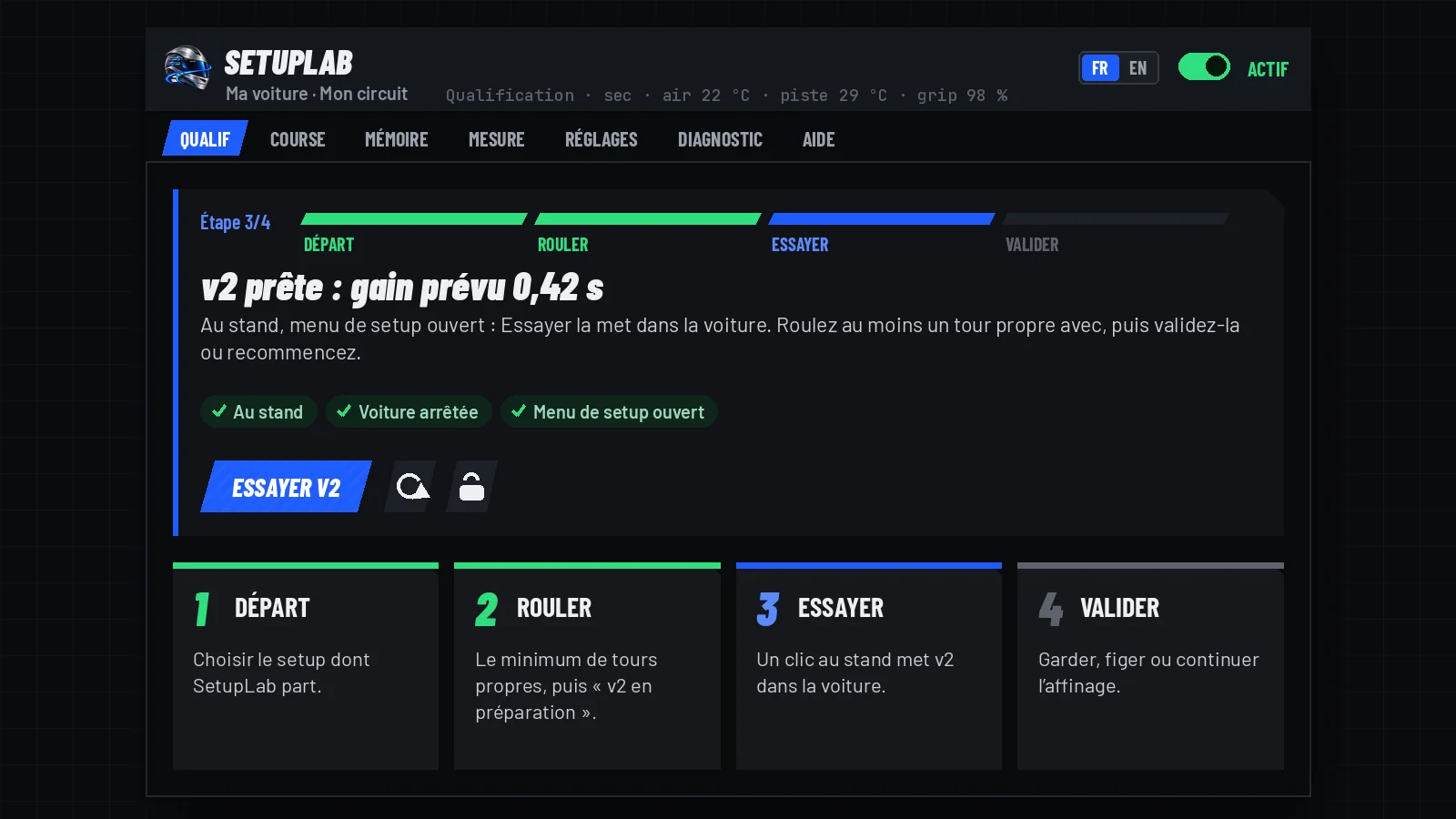
Start, Drive, Try, Validate: the step card always says what to do next.

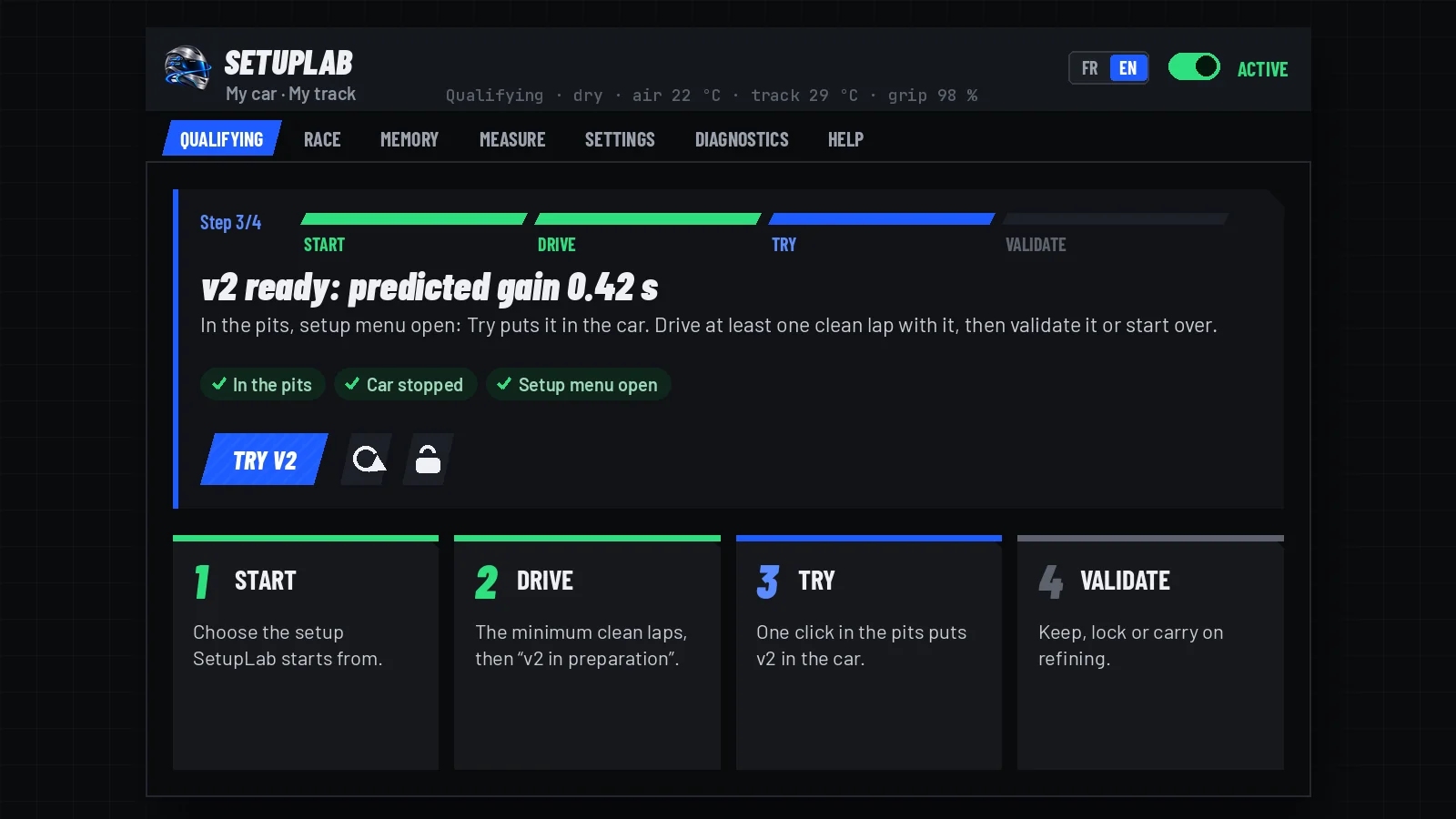
The step card at step 3: the version is ready, one click in the pits to try it.

First launch

In the pits

  • Start a session, offline or online, and open SetupLab with the car in the pits: that is where it measures the reference ride height.
  • Wait for “Discovery finished”. The header shows the car, the track, the detected session, the data source and the model state.
  • The Step N/4 card, always at the top, says what to do next, with the button for that step; done in green, the next one in blue.
  • A setup changed in the menu, or a new session, restarts the discovery on its own.

1 · Start

Step card · Step 1/4

  • My current setup: the one in the car (your own, loaded from AC’s setup menu, or the default one).
  • Car’s default setup: every setting at its default value, written to SetupLab_Default.ini; fuel, compound and settings of the car’s script stay as they are.
  • Resume my reference vN: your validated setup on this track.
  • The choice activates SetupLab and puts that setup in the car, in the same click. Change the starting point, under the card, lets you start again from another setup.

2 · Drive

  • After the minimum clean laps, SetupLab announces it once at the top of the screen (“v2 in preparation”) and keeps analysing your laps while you stay on track.
  • When you return to the pits, the version is announced as ready.
  • A setup is only proposed if it gains at least 0.05 s per lap.

3 · Try

  • Try v2 puts the proposed setup in the car, in one click, in the pits; drive at least one clean lap with it.
  • Its trial file goes to the Recycle Bin once the load is checked: nothing is kept before validation.
  • Start over puts the previous setup back in the car. While a version is on trial, SetupLab proposes nothing else.

4 · Validate

  • Validate v2 keeps it, in a new …_v2.ini file: it becomes your reference on this track.
  • SetupLab then asks, after every validation: Carry on refining (a new version with your next laps) or Lock v2.
  • The SetupLab active box applies to this AC launch: at start-up SetupLab is on standby and writes nothing, but still analyses your laps.
  • The starting point is chosen again at each new session.

New in 2.0.0Default setup and step card

  • “Car’s default setup” is only offered when CSP gives the default values; that is not the case with the free CSP 0.2.11.
  • When a computation is impossible for good with a car (unreadable data, incomplete model, no setting it can change), the step card says so, with the reason and a single action: read the car again.

Validate, modify, the buttons

4 topics

Keep or refuse each proposed setting, then validate in one click.

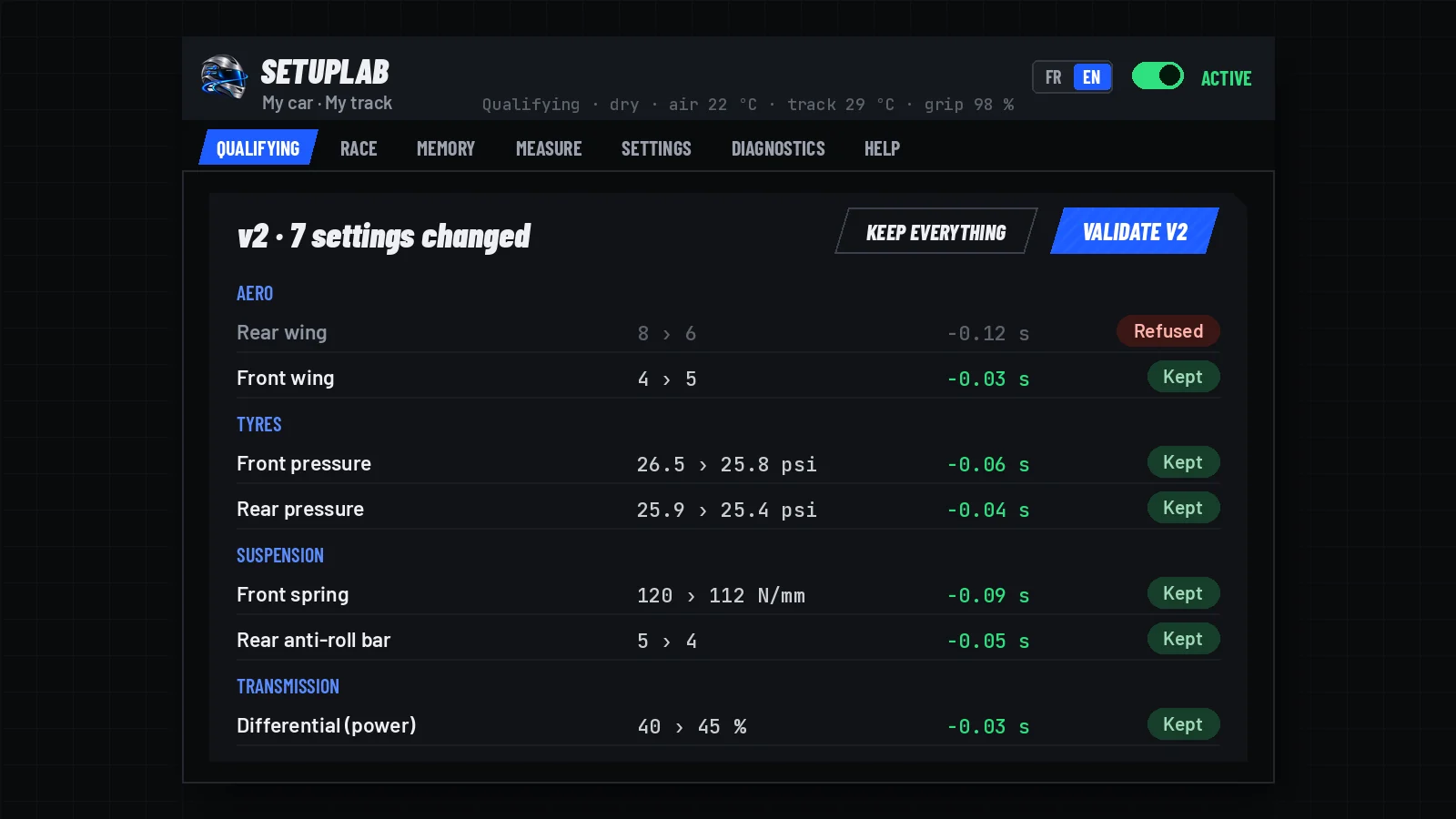
Modify…: each setting under its family, Kept or Refused, then Validate.

Validate or modify

Under each version

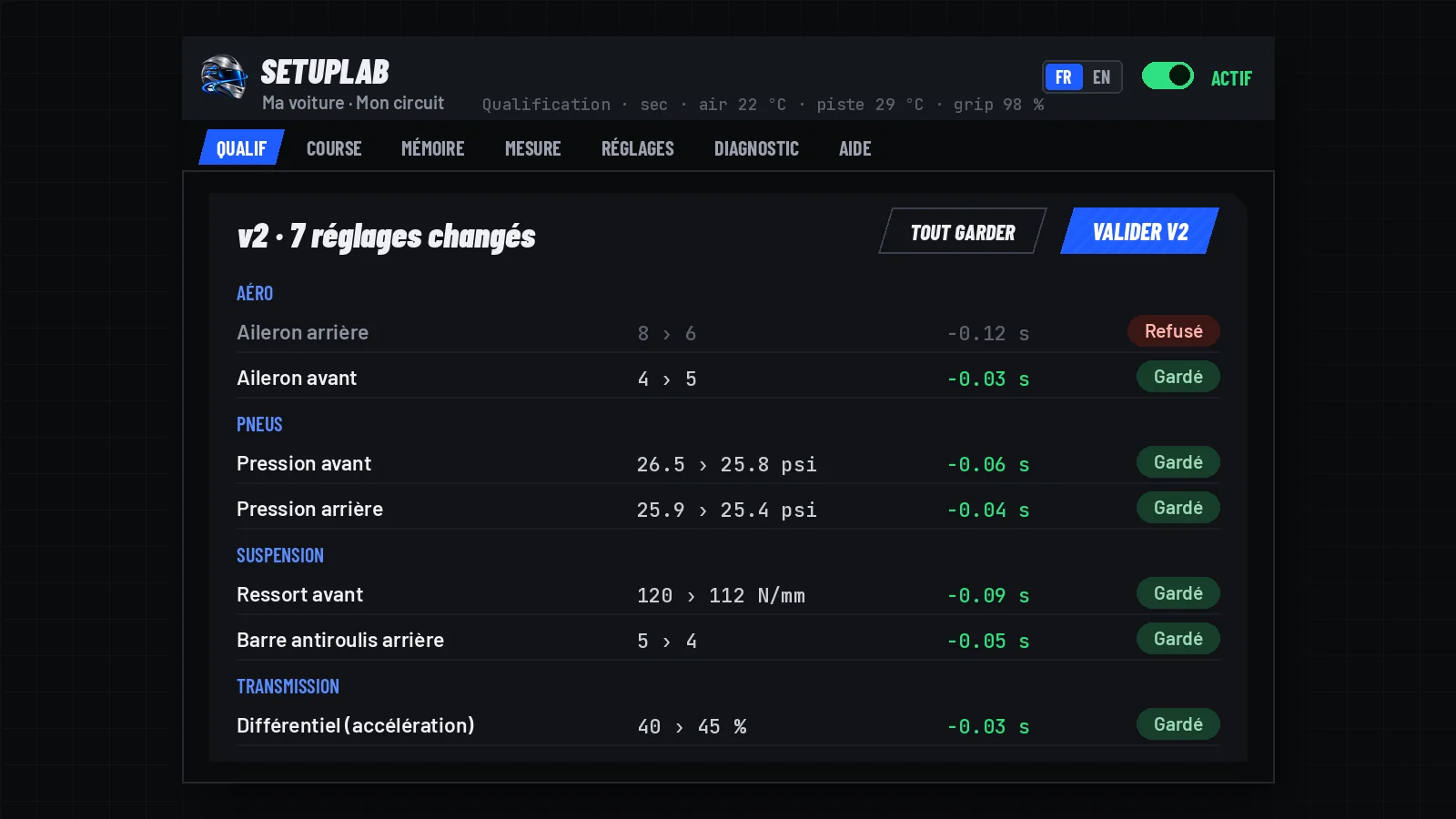
  • One line sums up the changes (“7 settings changed”); all of them, with old and new values and predicted gain, are on hover.
  • Everything is kept by default: one click on Validate vN is enough.
  • Modify… opens the list, setting by setting, under the title of its family (aero, tyres, geometry, suspension, transmission, brakes, engine, aids). One click on Kept makes it Refused, and back; Keep everything cancels the refusals.
  • With some settings refused, the kept version replaces the trial in the car. No setting kept: validation is refused.

A refused setting

  • It keeps its old value in the validated version and in the next computations; the other settings of its family take their new value.
  • It appears under “Your changes kept” and returns to the computation with Release your changes.
  • “Validate without trying · puts it in the car” saves the version right away, skipping the trial.

Start over and Lock

Step card · icons

  • Start over (circular arrow, name on hover): the version is neither kept nor proposed again; the previous setup goes back in the car.
  • An already validated version gives its place back to your previous reference; its file goes to the Recycle Bin, car stopped. The button turns red when the version is actually slower.
  • Lock vN (padlock) validates and locks: it is the final setup of this session for this track. “Unlock”, in the MEMORY tab or the step card, restarts the refinement.

Good to knowThe buttons, one by one

ButtonWhat it does
Try vNPuts the proposed setup in the car, in one click, in the pits.
Validate vNSaves the version with the kept settings; it becomes the session’s reference, kept in the track memory.
Modify… then Kept / RefusedRefuses one particular setting of the version.
Validate without tryingThe version is saved and put in the car, without a trial.
Start over (do not keep vN)The version is neither kept nor proposed again; the previous setup comes back.
Lock vNValidates and locks: the final setup of the session for this track.
Carry on refining / Lock vNThe question asked after every validation.
Start from qualifying vN / Resume my race vNRACE tab: the race start, in one click.
Refine during the raceRACE tab, in a race session: race setup offered at the finish.
Stop the refinementStops the refinement; if SetupLab is active, it also goes on standby.
Release your changesGives the settings changed by hand, and the refused ones, back to the computation.
Measure the real gainA clean lap with the original setup, then one with the proposed setup: predicted gain against measured gain.
UpdateInstalls the newly published version.

When SetupLab proposes

4 topics

The minimum laps and minutes, and your own changes in the pits.

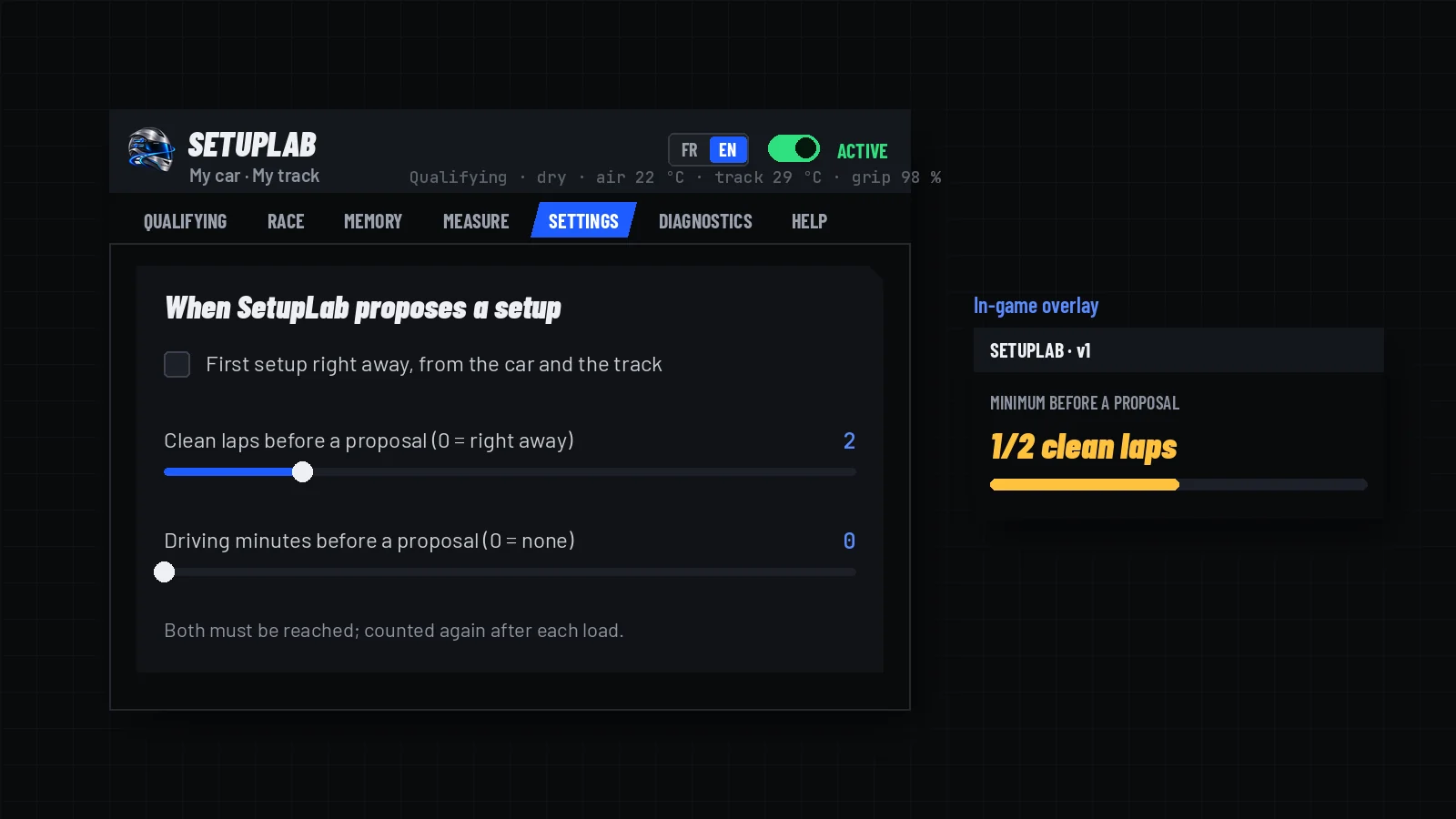
SETTINGS tab, “When SetupLab proposes a setup”, and the progress in the overlay.

Minimum before a proposal

SETTINGS › When SetupLab proposes a setup

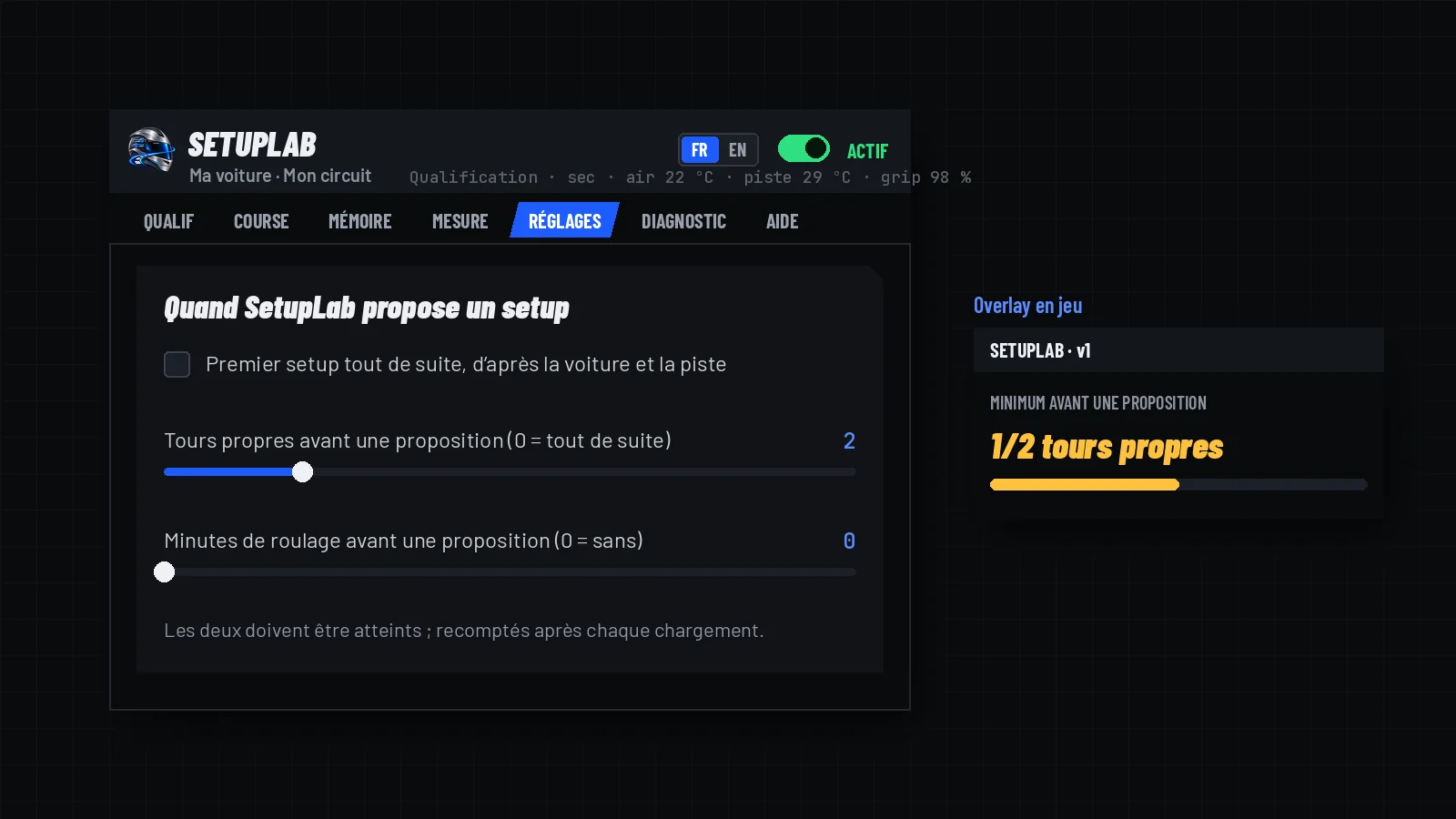
  • First setup right away, from the car and the track (unticked by default): ticked, a first setup is computed as soon as SetupLab is active, without waiting for a lap.
  • Clean laps before a proposal, with the setup in the car: from 0 (right away) to 10, 2 by default.
  • Minimum driving minutes, on track, car moving: 0 by default (none).
  • Both must be reached and are counted again after each load; progress shows in the step card and in the overlay.

Your own changes in the pits

  • After a load by SetupLab, you can adjust the setup to your taste: SetupLab detects it at the next discovery.
  • Each adjusted setting keeps your value in the next computations, like a refused setting.
  • On a wet track, a refused ABS or traction control level is no longer proposed. Fuel does not count as a change.
  • Release your changes gives the adjusted and refused settings back to the computation.

New in 2.0.2Back to the original compound

  • When you set the original tyre compound back, your compound change is released as for the other settings.

New in 2.0.0Changes and setup name

  • Your changes to a gear ratio after a load are kept, even when CSP writes the gears under another name.
  • A setup name that already ends with the kind, whatever the case, or that is only the kind, is written in the expected form: its versions are recognised.

Loading, files and names

7 topics

One click in the pits, clear file names, and tidying that only touches its own files.

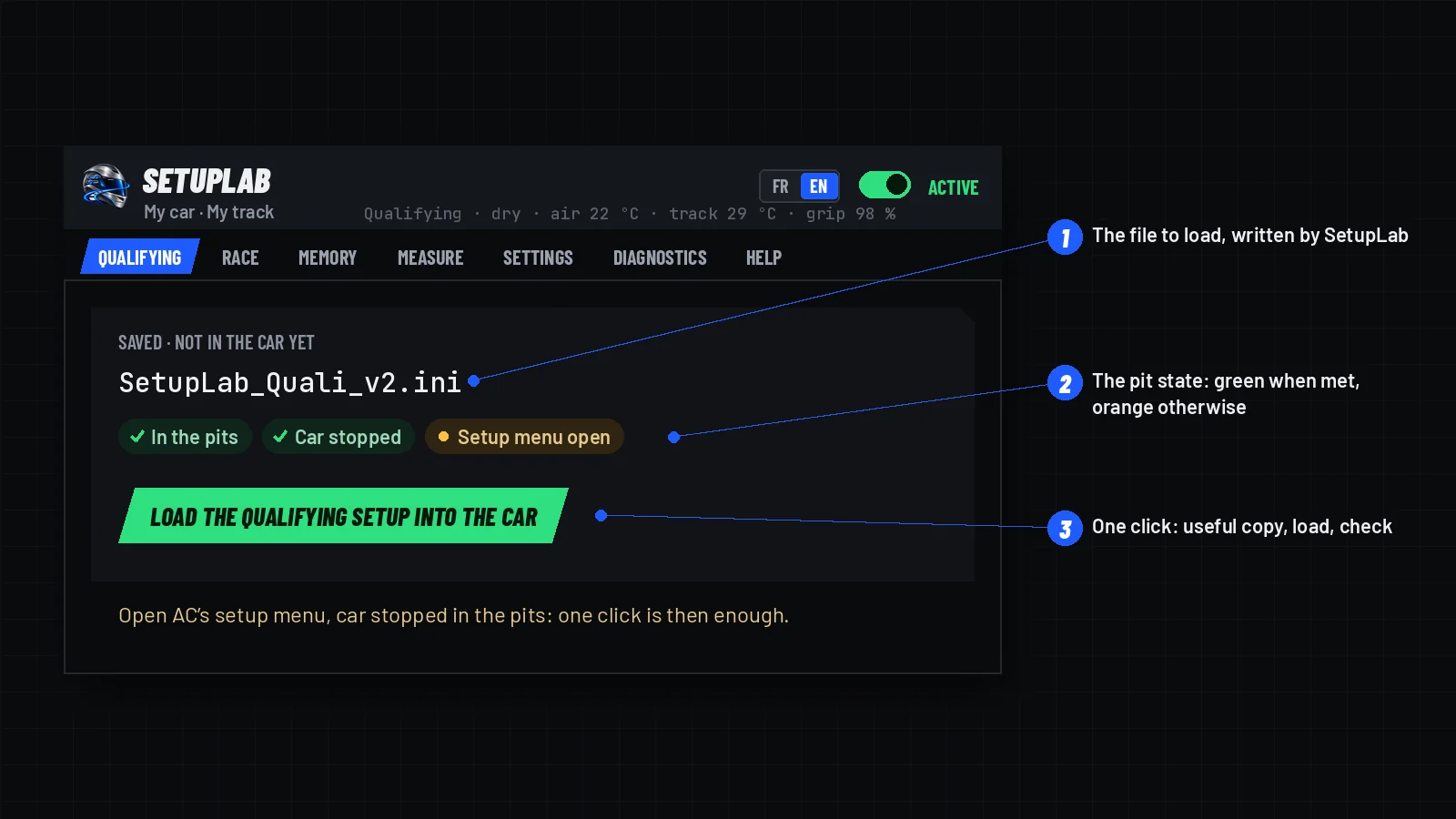
Loading a setup: the file, the pit state, the green button.
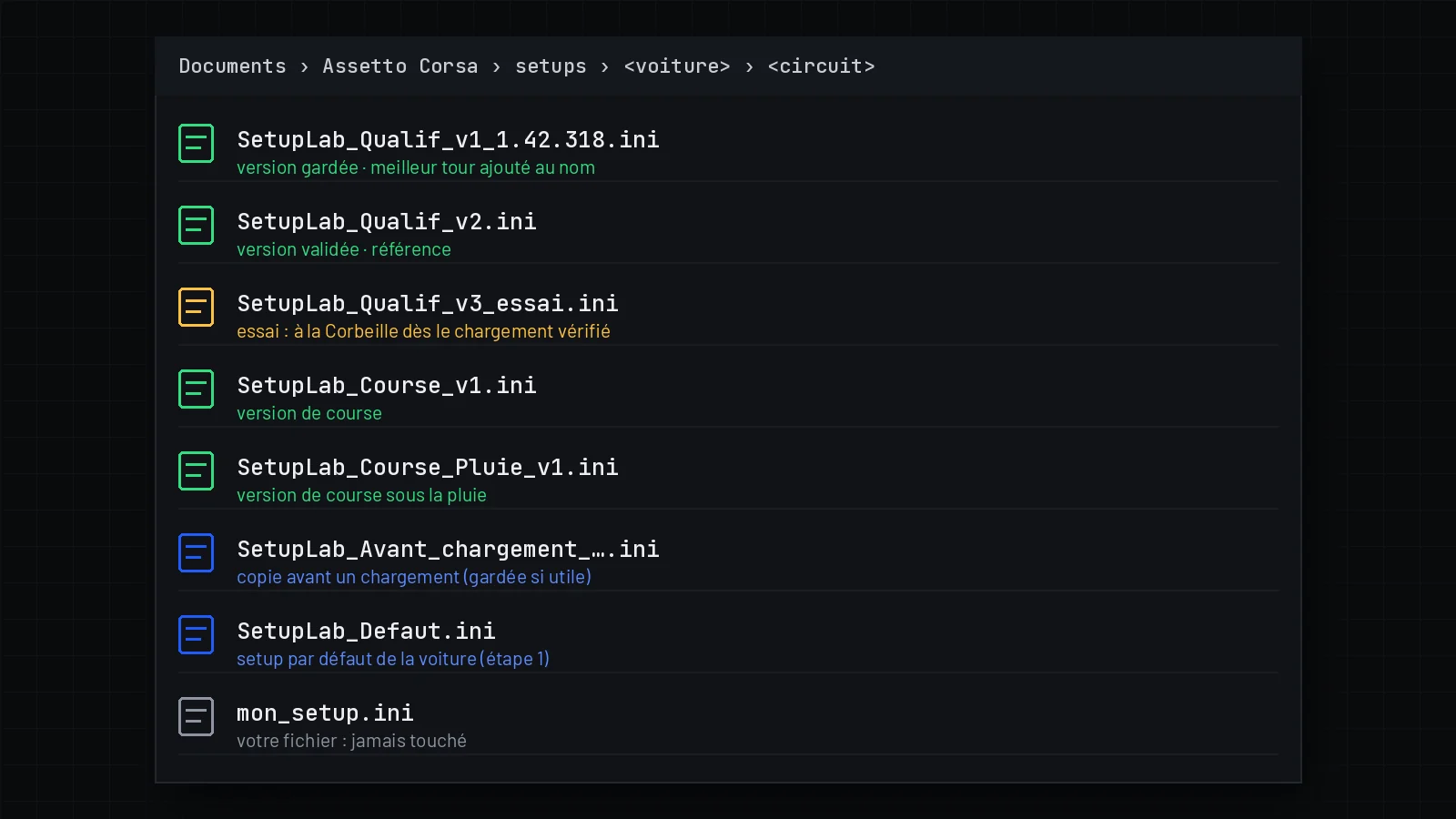
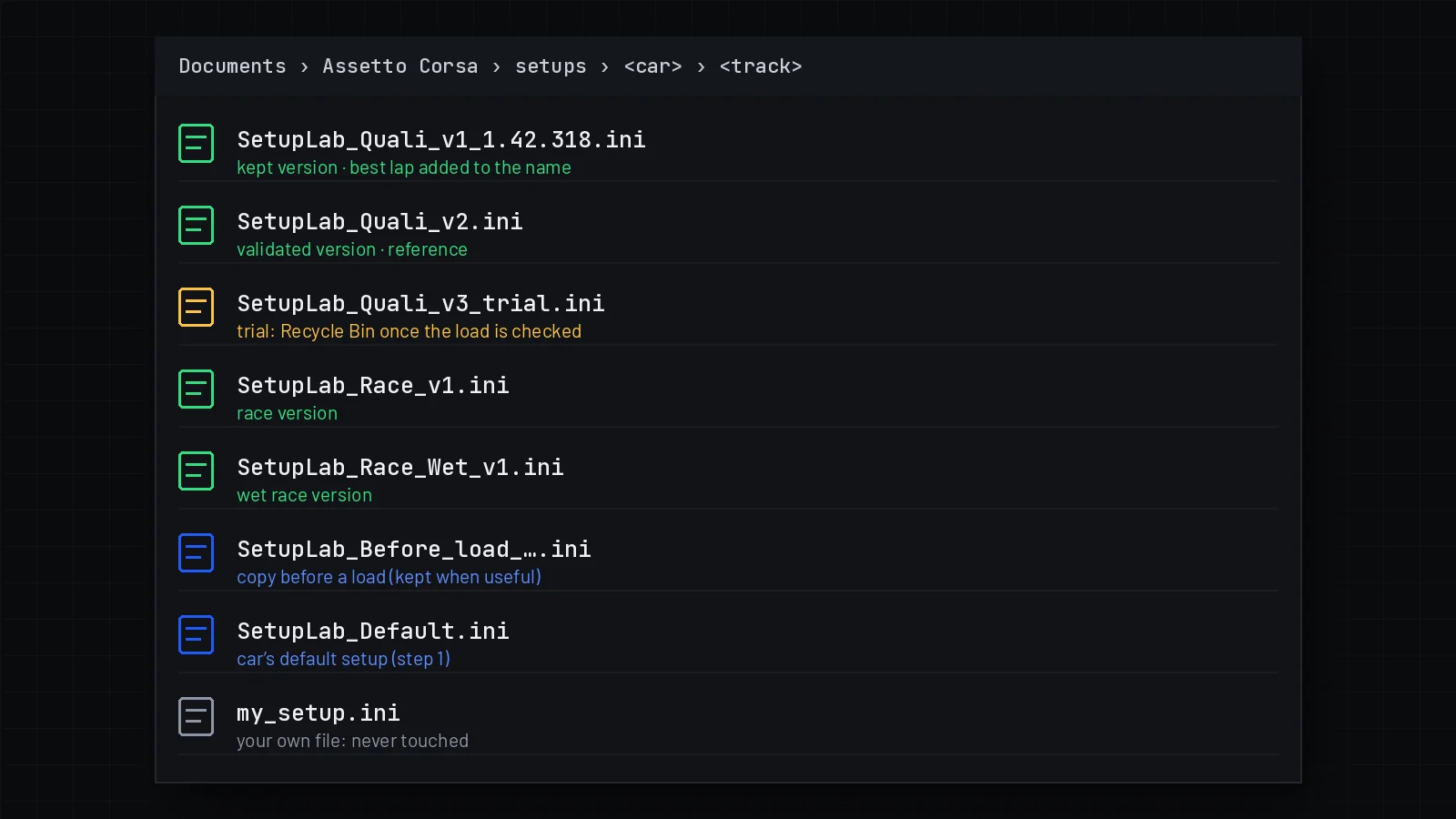
The car and track setups folder, with the names written by SetupLab.

Loading a setup into the car

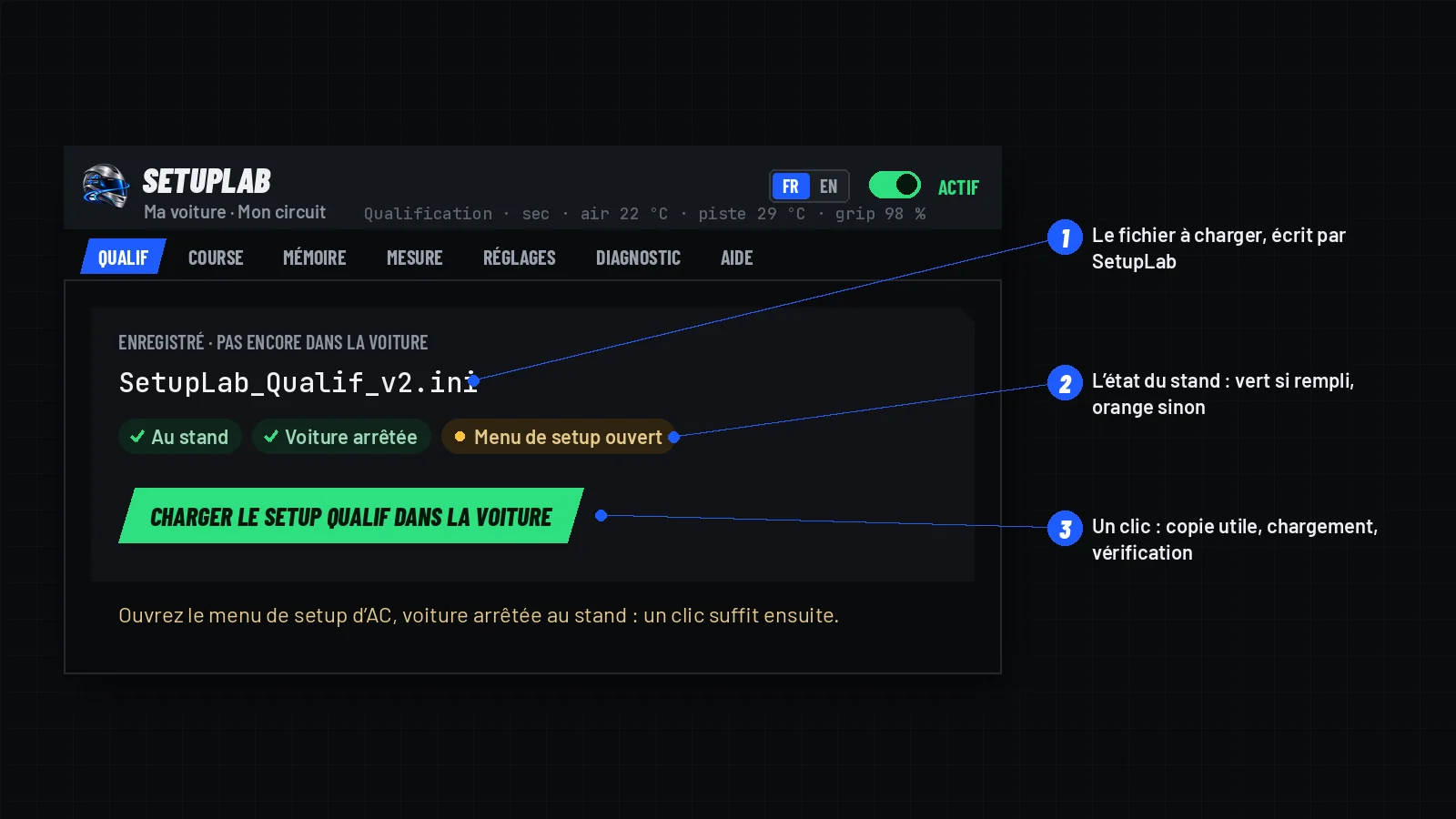
In the pits · car stopped · setup menu open

  • Click Load the … setup into the car: one click is enough. In a race session, also on the grid before the start; once the race has started, nothing is loaded before the finish.
  • Next to the green button: the file to load, the pit state (each condition in green or orange) and the reason for a refusal.
  • SetupLab first copies the current setup when that copy is useful (SetupLab_Before_load_….ini), loads the file, then checks that the car has the expected setup.
  • Only a file written by SetupLab can be loaded, recognised by its name and the fingerprint of its content; a file changed since then is refused.

Files and names

Documents/Assetto Corsa/setups/<car>/<track>/

  • Setups are written to the car and track setups folder and show in AC’s setup menu.
  • Version numbers continue from one session to the next on the same track, whatever the language; a name already taken gets -2, -3… (never overwritten).
  • The Setup name field replaces “SetupLab”; accents and spaces are removed, and the kind is not repeated if your name already ends with it.
  • Your best lap (AC’s timing) is added to the name of a kept qualifying version (SetupLab_Quali_v2_1.41.792.ini), car stopped.

Automatic tidying

  • With the car stopped, one file at a time, SetupLab sends to the Windows Recycle Bin the trial files whose version is in the car, the versions not kept and the “before load” copies identical to a kept file.
  • It never touches your own files or the game’s: only files it wrote during the session, intact.
  • With CSP 0.2.11, the Recycle Bin is not yet available to apps: these files are then deleted permanently.

New in 2.0.2Robustness

  • A setup file found truncated after writing (disk full) goes to the Recycle Bin.
  • An error while recording a lap no longer stops the computations; the lap in progress is dropped and the error logged once.
  • Saving the track memory waits before retrying after a failure; the in-game update accepts a version number with trailing spaces.

New in 2.0.1Gears in setup files

  • Setup files name gears INTERNAL_GEAR_2..7 for GEAR_1..6 of setup.ini. SetupLab used the same number on both sides: a changed gear would have been written into the gear below it, and a first-gear change made the file refused.
  • Fixed in writing, reading back, the setup comparison (the gearbox is no longer “to confirm”) and the free CSP 0.2.11 mode.

New in 2.0.0Setup unreadable when saving

  • If CSP returns an empty copy of the current setup, the “Setup not saved: current setup unreadable” message now says what to do: click again in the pits with the setup menu open; otherwise, copy the J0 report (DIAGNOSTICS tab) and send it with your CSP version.

Good to knowFile names

FileIn FrenchIn English
Qualifying versionSetupLab_Qualif_v2.iniSetupLab_Quali_v2.ini
Race version, wetSetupLab_Course_Pluie_v3.iniSetupLab_Race_Wet_v3.ini
Trial of a versionSetupLab_Qualif_v2_essai.iniSetupLab_Quali_v2_trial.ini
Car’s default setupSetupLab_Defaut.iniSetupLab_Default.ini
Copy before a loadSetupLab_Avant_chargement_….iniSetupLab_Before_load_….ini

Your lap times and the overlay

5 topics

Your real lap times first, and the verdict on each version while you drive.

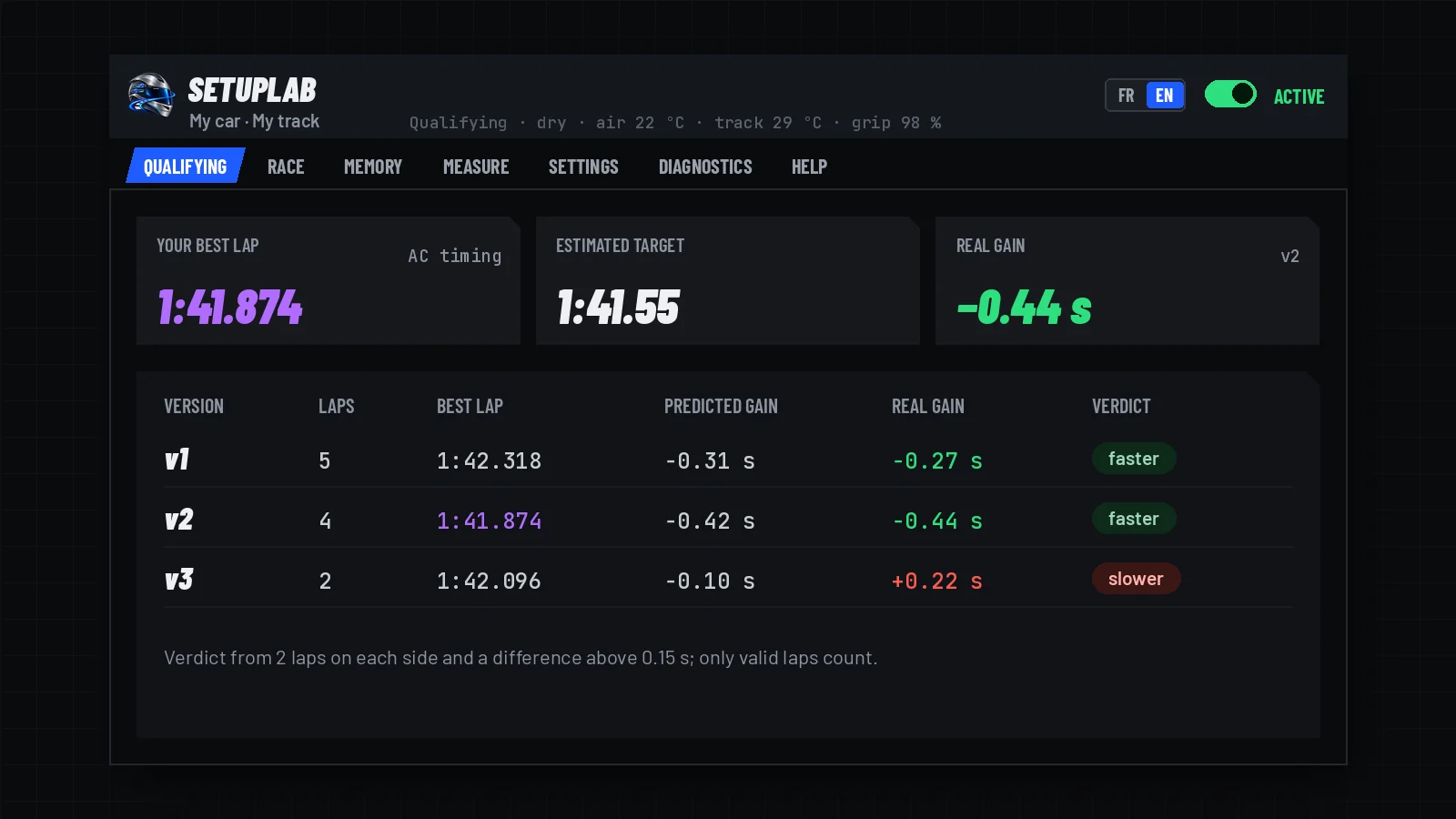
Your real times, the estimated target, and the verdict on each version from your laps.
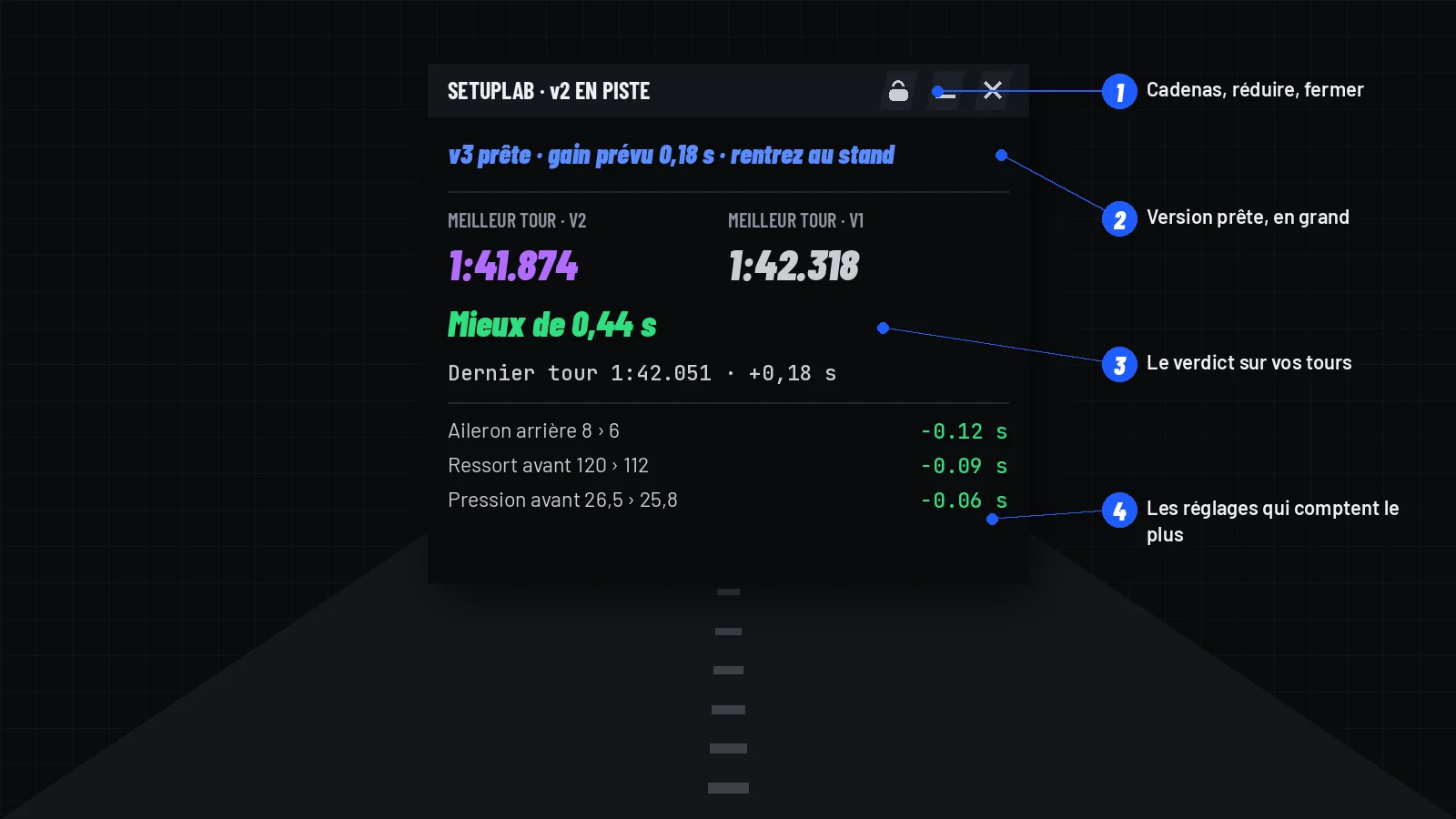
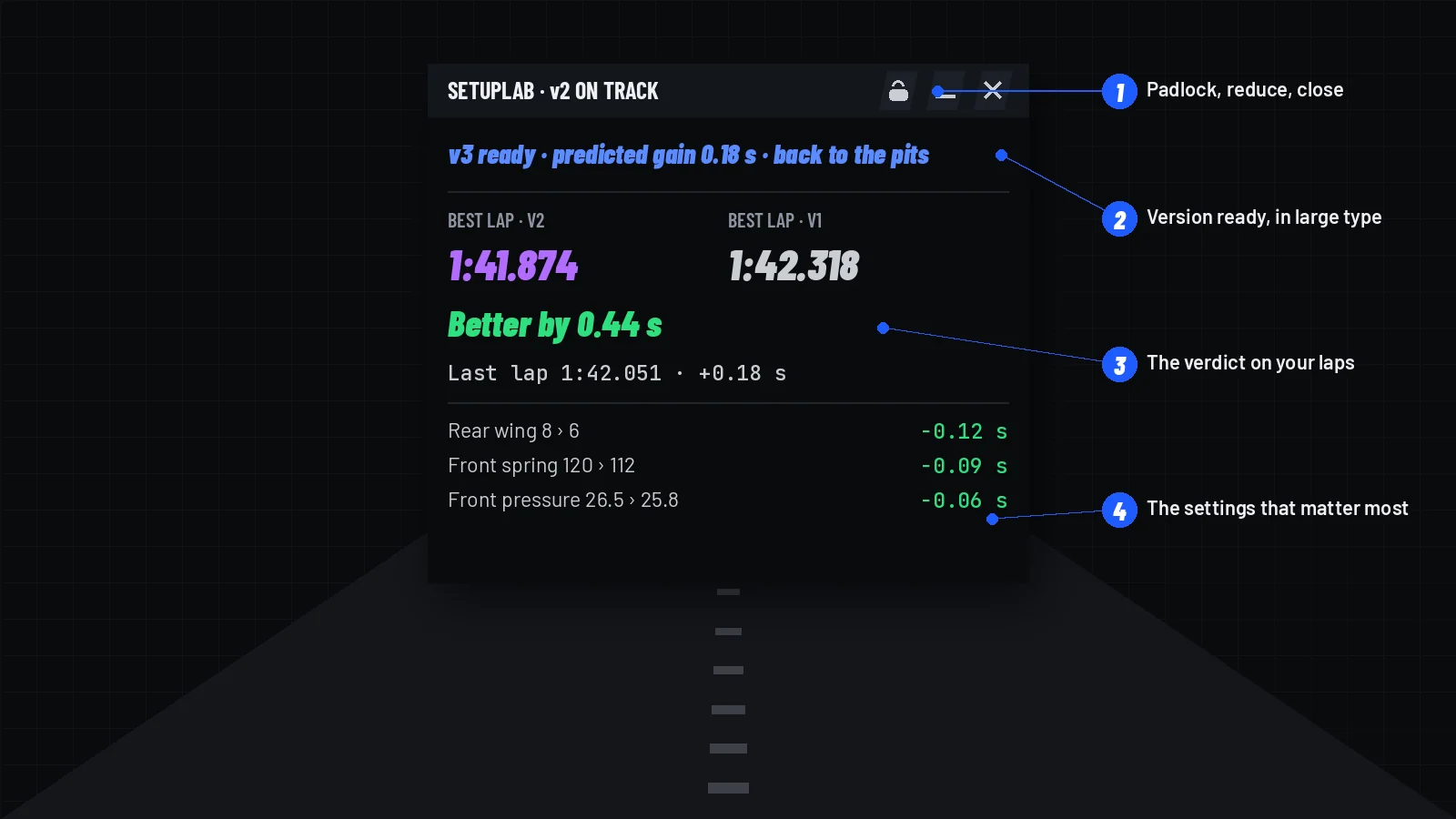
The overlay on track: version ready, verdict on your laps, the settings that matter.

Your lap times

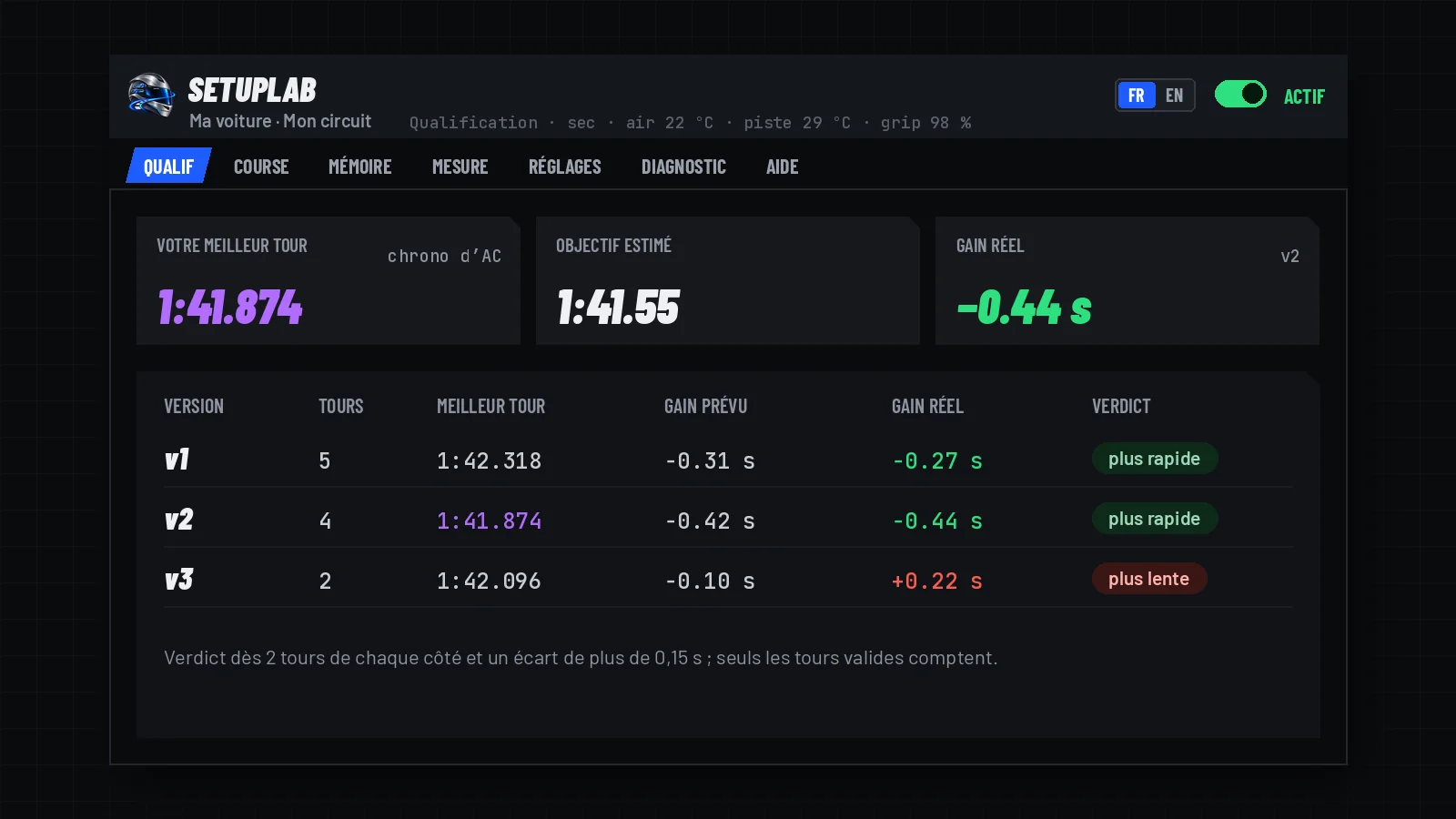
  • Your best lap of the session with the current setup, as AC’s timing counts it (traffic or a small incident included); the clean lap used by the analysis shows next to it when different. In a race: your average lap.
  • Estimated target: your time minus the predicted gain. For each version: your laps with it, the predicted gain and the real gain.
  • With at least 2 laps on each side and a difference above 0.15 s, SetupLab says whether a version is actually faster or slower; simulated times are on hover.
  • Only valid laps count: out laps, laps invalidated by AC, pit lane passes and off-tracks are left out (reason in the MEASURE tab).

In-game overlay

CSP app bar › SetupLab Overlay

  • Translucent background, updated every lap. Its bar shows the setup on track and three buttons: padlock (locks position and size), reduce (the bar only, with the gap on your laps), close.
  • A ready version is announced in large type (“v1 ready”, predicted gain, “back to the pits”).
  • The verdict on your laps: best lap with this setup and with the previous one, then Better by … in green or Worse by … in red; your last lap and its gap.
  • The changed settings that matter most, with their predicted gain, then the next version or the minimum left before a proposal.

New in 2.0.2Laps and companion apps

  • Cars that move their brake bias by themselves during the lap (the bias goes back and forth) no longer have every lap rejected for “brake bias changed while driving”; changing the bias on the wheel still sets the lap aside outside a race session.
  • A lap neutralised by AdvancedIA in one session is no longer applied to the same lap number of the next session.
  • When SetupLab is turned off, SpotterEngineer receives an idle state instead of the last published one.

New in 2.0.1Your race times

  • Race memory and “your average lap”: laps AC counts that were left out of the analysis for traffic or an incident now count for the race, also when the race setup is refined in practice or qualifying. A lap invalidated by AC (track cut) outside a race session is still left out.
  • Changing the brake bias on the wheel no longer voids the lap: it counts in AC’s times and for the race, never as a clean qualifying lap.
  • The first race lap after a setup change on the grid is reported as a standing start, no longer as “setup changed during the lap”.
  • “Your best · current setup” follows the setup actually in the car after a change in AC’s menu. Qualifying lap counts use clean laps only; race texts say race laps.

New in 2.0.0Neutralised laps

  • With AdvancedIA, laps under safety car, VSC, FCY, red or yellow flag, formation lap, a delta to respect or a penalty only count in AC’s times: they are left out of the calibration, pace, fuel use and wear.
  • SetupLab waits up to 1.5 s after the line for AdvancedIA’s verdict on each lap.

Track memory and lock

3 topics

Your validated setups, kept per track, session and track state.

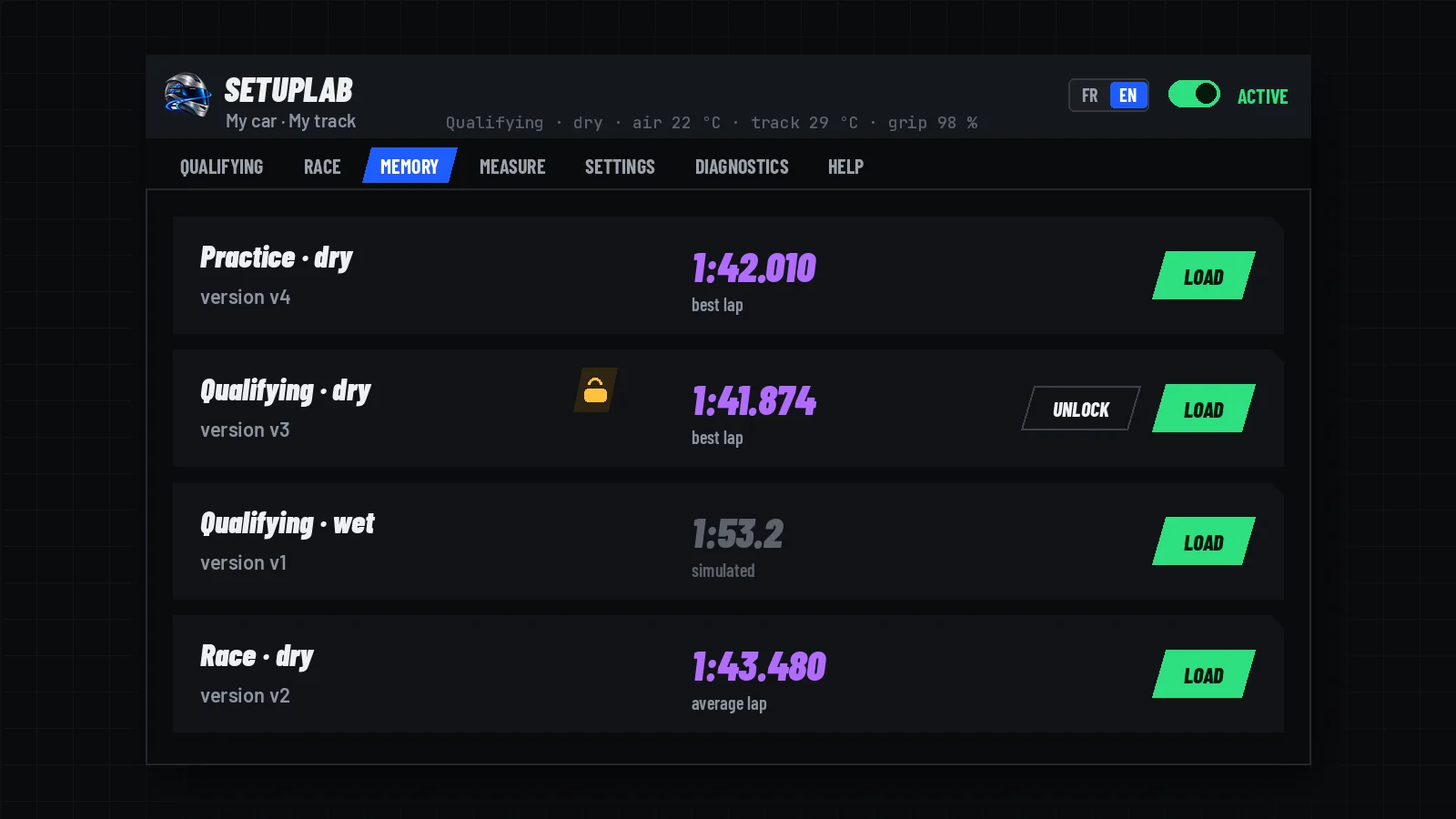
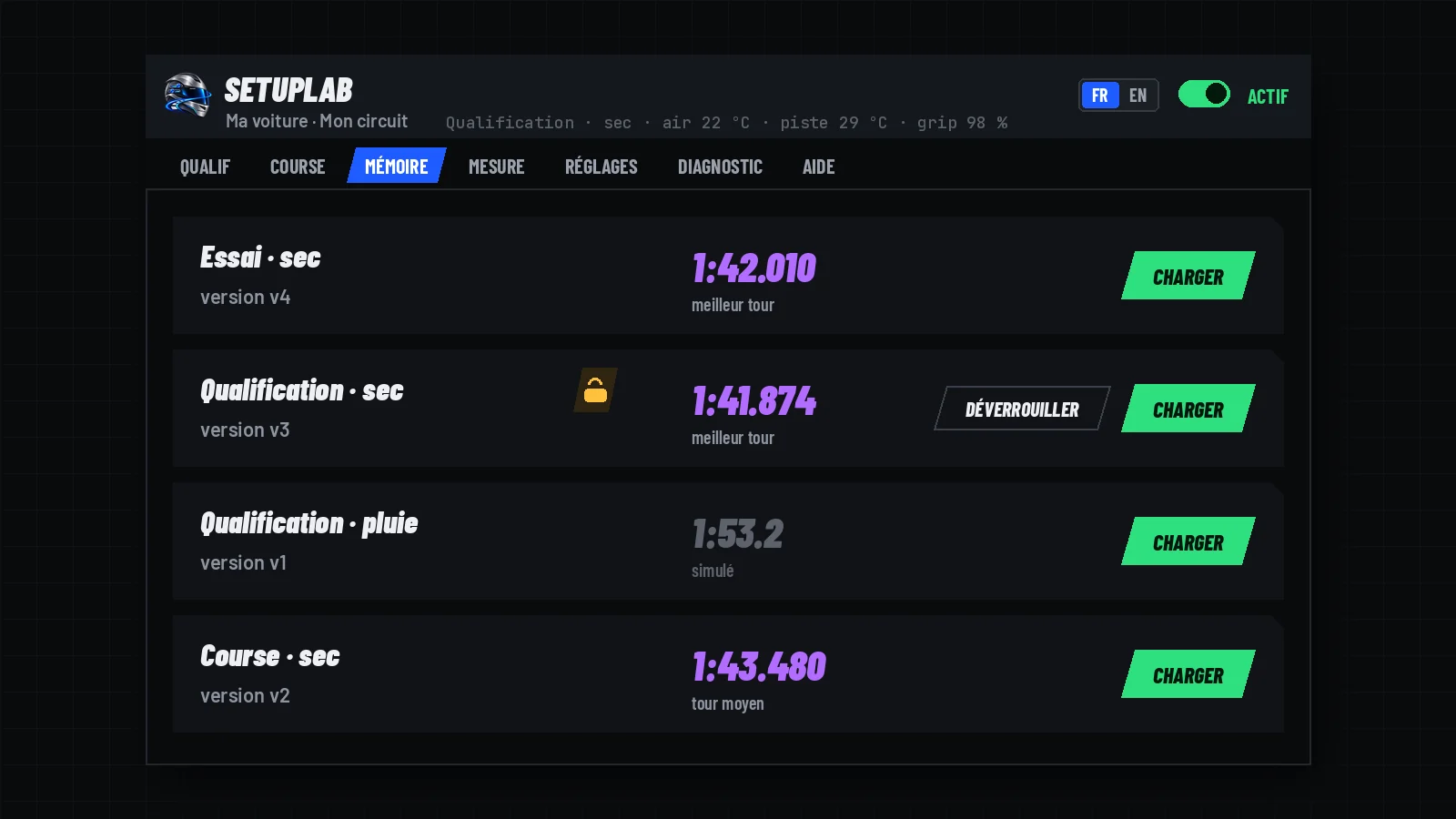
The MEMORY tab: one setup per session and track state, to load or unlock.

What is kept

MEMORY tab

  • The validated setup is kept from one AC launch to the next, for this car on this track (layout included).
  • One per session (practice or track day, qualifying, race) and per track state (dry or wet).
  • The MEMORY tab lists them and offers to load them, in one click, in the pits.

Locked, and your real time

  • A locked setup (padlock) is no longer changed by the refinement; “Unlock” gives it back to the refinement.
  • Each one shows your real time with it, over all sessions: best lap, or average lap for the race.
  • Before your first lap with it, the simulated time shows in grey, marked as such: never a simulated time shown as yours.

New in 2.0.2Your faster changes kept

  • A SetupLab setup from the track memory, then changed by you in AC’s setup menu and faster on your own laps (qualifying: your best lap counted by AC; race: the mean of at least 3 race laps), is saved as the next version once the car is stopped.
  • It becomes the memory reference and the setup to load; the previous version stays in the memory. Fuel and brake bias stay those of the reference file.
  • Never during a refinement (its versions still wait for “Validate”), never for a locked setup, and never when the car’s setup has changed again since; each case is said once in the log.

The race setup

8 topics

Built from your qualifying setup for a full stint, or analysed during the race.

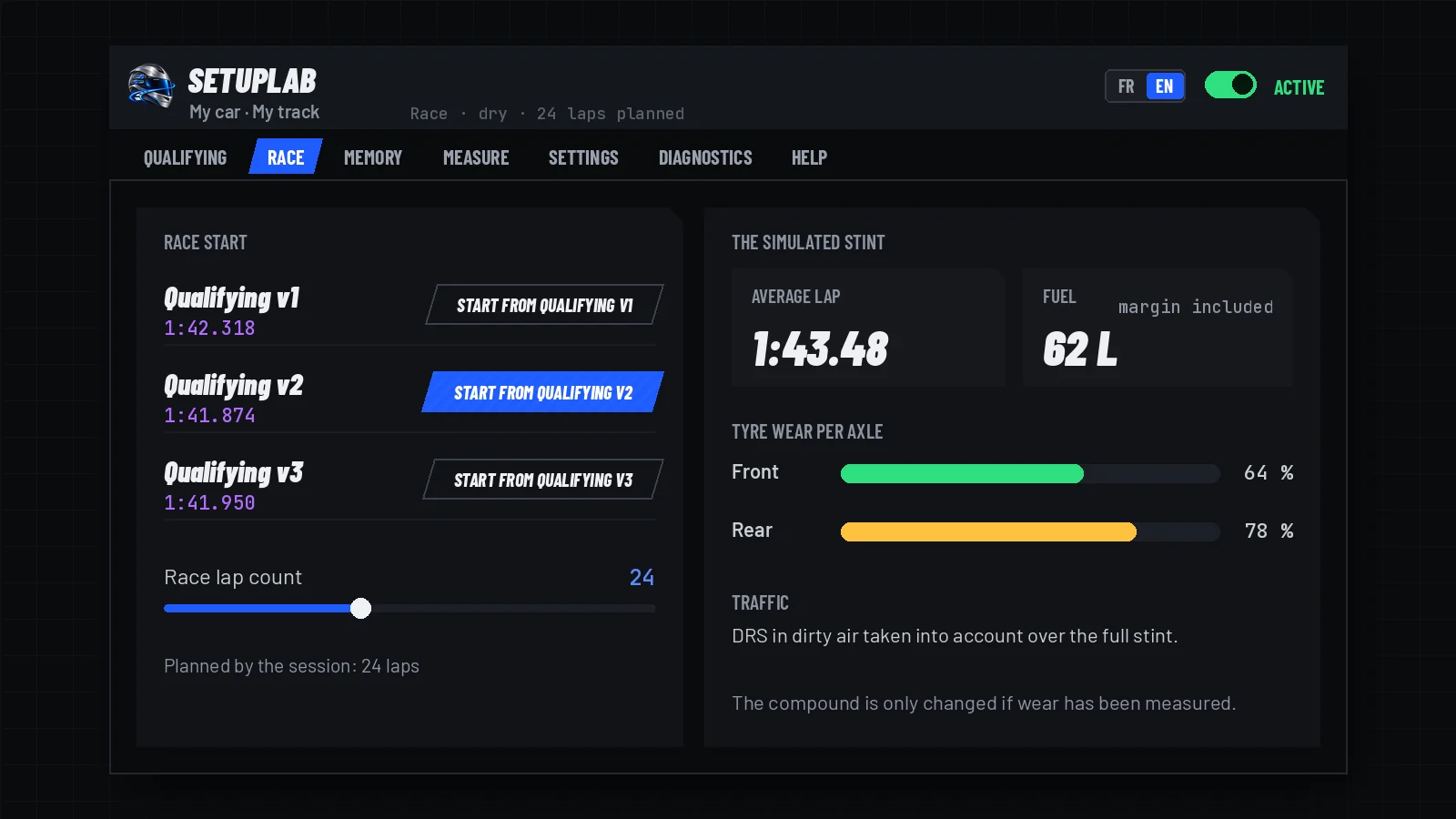
The RACE tab: start from a validated qualifying setup, and the simulated stint.

The conditions

RACE tab

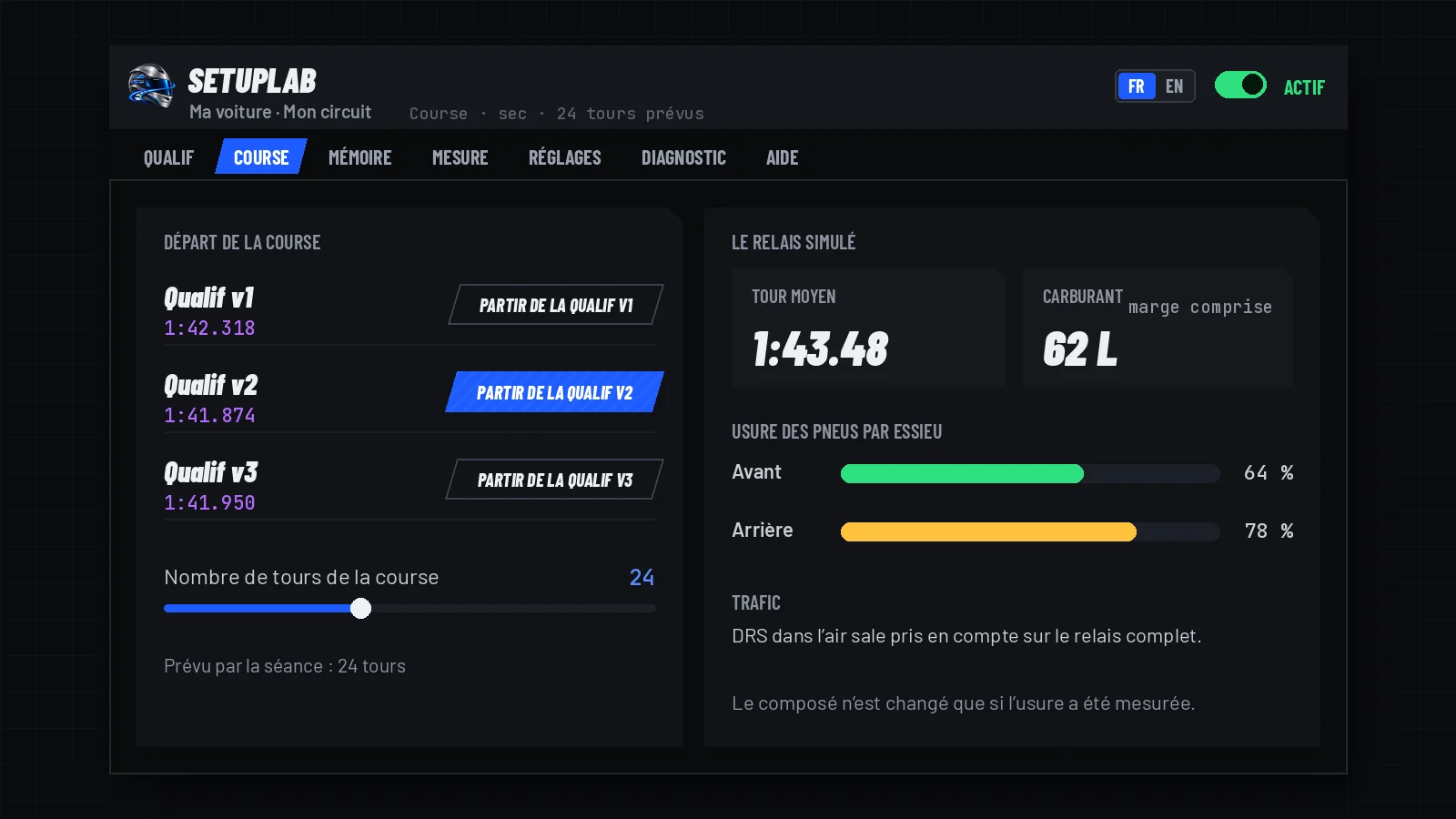
  • The race setup starts from a validated SetupLab qualifying setup (at least a v1); your laps with it give your pace.
  • Until there is one, the RACE tab offers Go to the QUALIFYING tab.
  • Race lap count with the slider (Ctrl + click to type it), kept for this car on this track; the lap count planned by the session is shown.

Race start

  • The tab lists your validated qualifying versions on this track (v1, v2, v3…), including those from an earlier AC launch.
  • Start from qualifying vN puts it in the car and starts the race refinement, in one click; Resume my race vN carries on from a validated race setup.
  • With SetupLab active, the first race version is computed straight away: your laps with this setup were driven in qualifying. The next ones wait for the minimum clean laps.

The simulated stint

  • The computation simulates the full stint: fuel load, tyre wear per axle, traffic (DRS in dirty air).
  • The compound is only changed if wear has been measured.
  • When SetupLab loads the race setup, the selected quick pit preset gets its pressures and tyres; fuel and repairs stay yours.

During a race

SetupLab Track › RACE › Refine during the race

  • In a race you start on the grid: open SetupLab Track from the CSP app bar, the same interface, usable while driving.
  • Refine during the race starts from the setup in the car; the lap count is read from the session (estimated for a timed race).
  • Your race laps count, traffic and incidents included, for pace, fuel use and wear; never for the calibration.
  • The setup is computed once, at your finish: “race setup vN for your next race”. Once the race has started, nothing is loaded into the car.

New in 2.0.2Top speed in the last gear

  • Each computed setup is judged on its own top speed (ERS, DRS and the rev limiter included): it is reached in the last gear, without wasting it.
  • This penalty is left out of the per-setting gains shown, which stay lap time only.

New in 2.0.1Race fuel

  • Race fuel now uses the same basis as the other apps by the same author: (race laps + 1 reserve lap) × consumption + 2 L of safety fuel. The fuel margin setting (3% by default) is added to the starting fuel only.
  • Consumption is the mean of your last 5 race-pace laps (dry and wet apart), never below CSP’s figure; pit laps, refuelling and laps neutralised by AdvancedIA are left out. Before, the plan used the consumption of your best lap and could run dry.
  • Timed race: the lap count uses your real lap time when you are faster than the simulation, plus one lap.
  • AdvancedIA rules: the stop count is never below the mandatory stops nor above laps − 1; the maximum stint length is converted with the slower lap time, so the rule is never broken. The panel says whether the stops come from the rule or the tank.

New in 2.0.0Race rules and traffic

  • With AdvancedIA, mandatory stops and the maximum stint length cap the stint, and so the starting fuel; DRS disabled by the rules is not counted.
  • With a mandatory tyre change, the quick pit preset gets the best allowed compound other than the fitted one. A “Rules” line appears in the stint only when a rule applies.
  • Cars stopped, off the track or retired, according to AdvancedIA, no longer count as traffic.
  • The computing time SetupLab takes in each frame shrinks when AdvancedIA needs more time.
  • During a race, the version in the car can no longer be discarded: judge it at the finish.

Good to knowDuring a race: good to know

  • The click on Refine during the race turns SetupLab on (ACTIVE switch), like choosing a qualifying start.
  • The setup loaded or changed in AC’s setup menu, car stopped, is read again on its own (about 1.5 s) and becomes the base of the refinement (fuel and brake bias excluded).
  • Exceptions to computing at the finish: the “Compute the race setup” button, and, before the start, starting from a SetupLab qualifying version (its v1 is computed at once so you can try it in the pits).
  • Laps through the pit lane, after the car is reset to the track, or after the chequered flag do not count.
  • While the setup-menu window is shown, SetupLab Track gives way to it and shows a single line.

Rain, tyres and manual computation

4 topics

A wet setup as soon as the track is wet, and computing without automatic refinement.

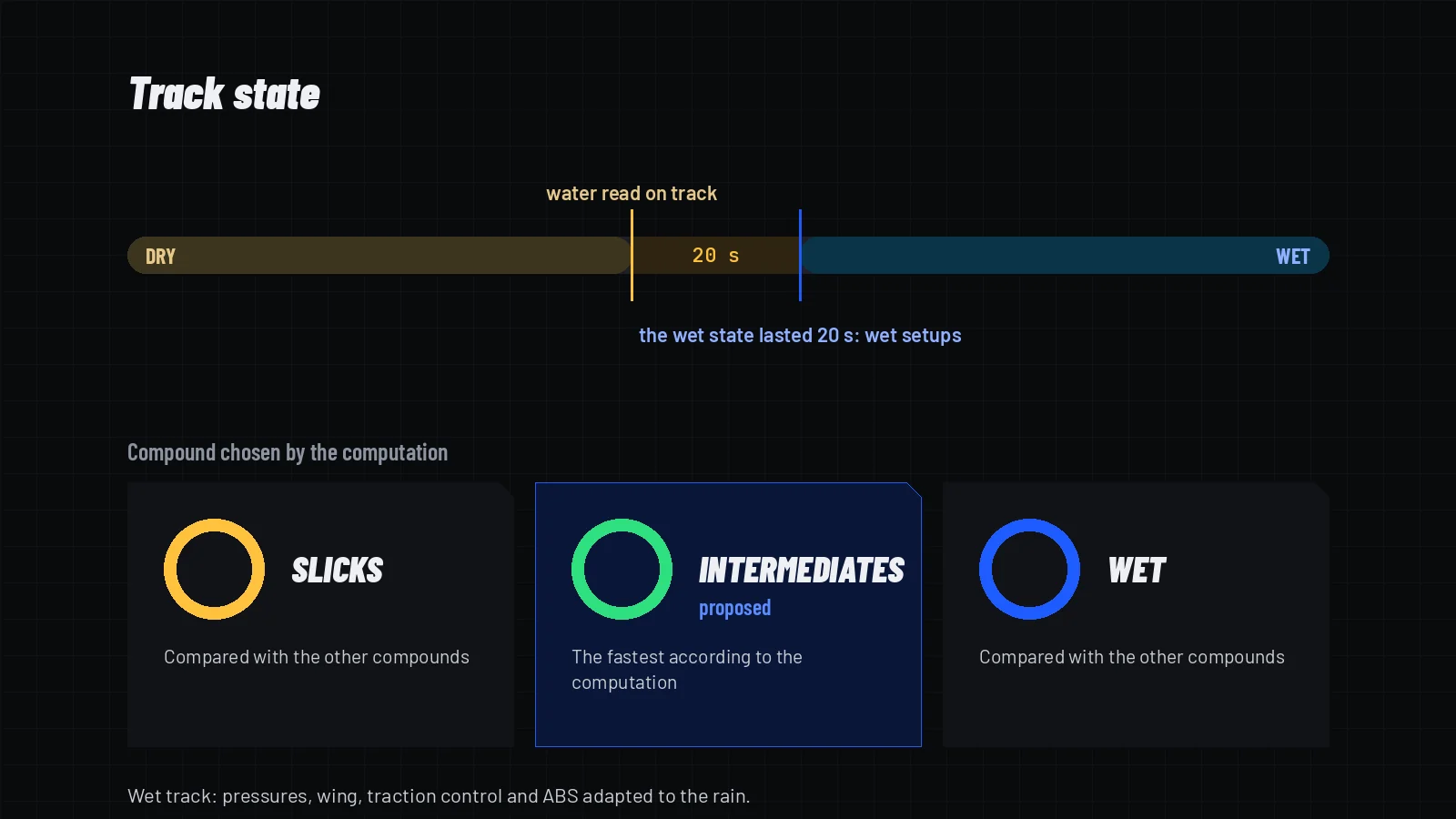
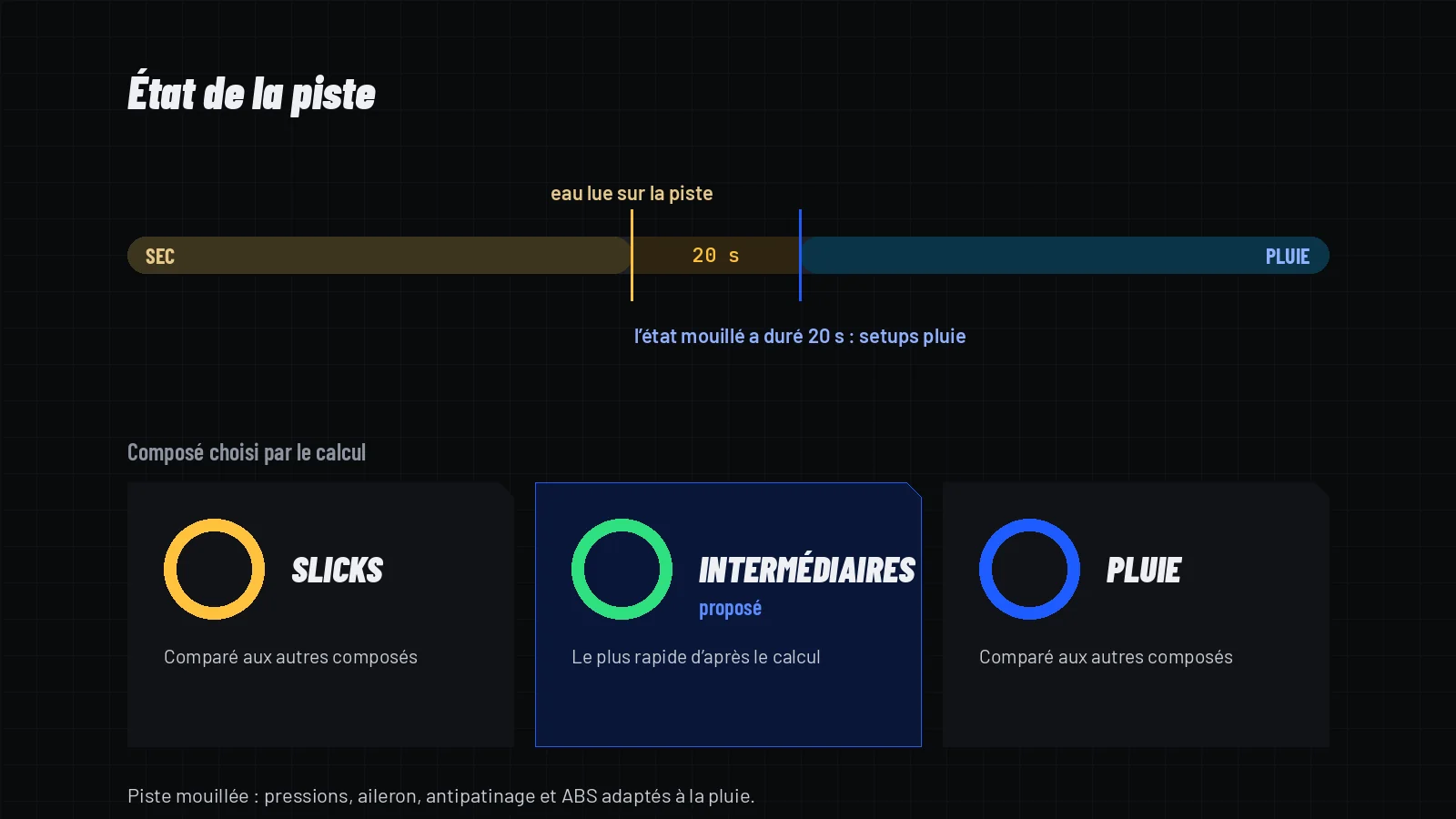
Dry or wet: 20 s of confirmation, then a wet setup with the right compound.

Rain

  • CSP rain is read directly, Pure’s rain included.
  • As soon as the track gets wet, every computation proposes a wet setup: compound chosen between slicks, intermediates and wets, pressures for cooler tyres, wing and settings optimised with wet grip, stricter traction control and ABS.
  • Wet laps calibrate a model separate from the dry one.
  • The track only switches between dry and wet after the new state has lasted 20 seconds.

Qualifying tyres

  • On a dry track, a qualifying setup uses the softest compound of the mounted range: hypersoft, ultrasoft, supersoft, then soft.
  • A compound you refused with “Modify…”, or one imposed in the settings, comes first.

Manual computation

QUALIFYING or RACE tab

  • Compute the … setup: estimated duration shown beforehand, the computation can be cancelled.
  • Read the proposed settings and their explanation on hover, then Save the … setup (a new file on every click).
  • In the pits, Load… puts the setup in the car, in one click.

New in 2.0.0Dry / wet switch

  • When AdvancedIA sees the same track state, the switch between dry and wet happens at once, without waiting 20 seconds.

The tabs and help

7 topics

Where to find what, and how to report a problem.

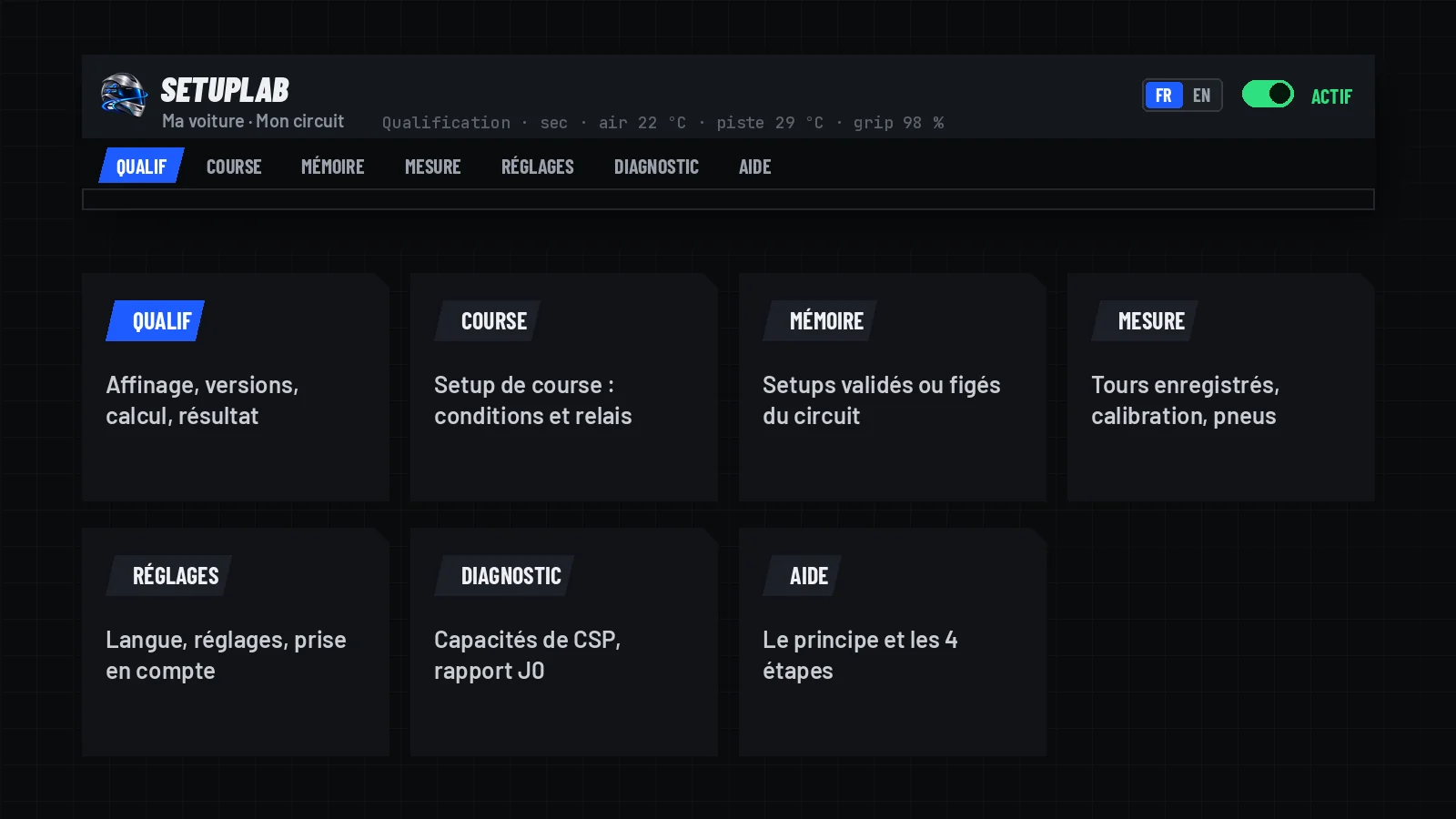
SetupLab’s seven tabs and what each one holds.

Computation and memory

  • QUALIFYING: refinement and versions, computation, setup name, result (tiles, settings, explanations, charts).
  • RACE: locked until there is a SetupLab qualifying setup on this track; then the three conditions of the race setup and the stint (average lap, fuel, wear, traffic).
  • MEMORY: the validated or locked setups for this track, to load or unlock.

Measure, settings, help

  • MEASURE: recorded laps (valid or not, with the reason), model calibration, tyres, track roughness.
  • SETTINGS: language, app settings (each explained on hover), what SetupLab takes into account and how every setup setting is handled, dry and wet.
  • DIAGNOSTICS: what CSP allows on your installation, and “Copy the J0 report”. HELP: how it works and the 4 steps, in short.

Reporting a problem

DIAGNOSTICS › Copy the J0 report

  • Open an issue on GitHub with the J0 report and, if possible, the recorded lap (MEASURE tab, “Copy the recorded lap”).
  • The copied report and lap are in French: that is expected.
  • If AC is already closed, attach CSP’s log, Documents\Assetto Corsa\logs\custom_shaders_patch.log (lines [Lua: App: SetupLab]); CSP replaces that file at the next launch.

New in 2.0.0ERS map

  • Hybrid cars: the QUALIFYING and RACE tabs show the track map with SetupLab’s deployment plan in colours (where to deploy, where the car’s own program deploys, where to recover), the start, the direction of travel and the recommended starting deployment program (MGU-K).
  • The plan relies on the car’s ERS files; cars whose ERS is run by their own script are not covered.

New in 2.0.0Recognised settings

  • More setting names are recognised (names specific to some cars, third-element bump stops, MGU-K and MGU-H start settings, turbo, engine braking, steering assist, gear sets): they are kept as they are, each with its reason, instead of “not recognised”.
  • They are never changed until their link to the physics is confirmed in game.

Good to knowFAQ

  • I click “Load” and nothing happens: check the pit state above the button (in the pits, car stopped, setup menu open); the reason for a refusal is shown under the button.
  • SetupLab proposes nothing: the step card says what is missing (minimum laps or minutes, a starting setup to load, a version on trial to validate, or one of the three conditions in the RACE tab).
  • Some settings never change: the SETTINGS tab gives the reason for each on hover (transient effect outside the model, roughness not measured yet, setting defined by the car’s script…).
  • Switching the app to French: one click on the EN badge at the top of the window, or SETTINGS tab, “Français”.

Good to knowBeta limitations

  • How closely the simulated lap matches AC still needs confirming on more cars: until calibration reaches its thresholds, the app shows “Low confidence: model not calibrated”.
  • The rain model relies on assumptions; your wet laps calibrate it.
  • The copied J0 report and lap, meant for development, stay in French.
No topic matches this search.

Illustrated guide to SetupLab 2.0.2 (1.0.0-beta.2.0.2), written from the app’s code and documentation. The illustrations are diagrams of the interface with example values, not game captures.

SetupLab © Vincent Chevalier / LHK Informatique · MIT licence · GitHub repository · Assetto Corsa is a trademark of Kunos Simulazioni; SetupLab is an independent project.

Barlow and JetBrains Mono fonts (SIL OFL licence). Updated: 17/11/2026.